
steam family share setup tutorial is the quickest way to stop the usual headaches: “Why can’t my kid see my games?”, “Why did my library lock?”, and “Why did Steam kick me out when someone else launched a game?” This guide walks you through the setup, what Steam Family Sharing can and can’t do, plus the small checks that prevent 90% of “it’s not working” moments.
Family Sharing sounds simple, but the rules feel picky in real life, especially once you add multiple PCs, a Steam Deck, different Windows accounts, or someone who signs in “just for a second.” If you set it up cleanly from the start, you avoid constant re-authorizing and confusing error messages.
I’ll keep the tone practical: you’ll get a clear step-by-step, a fast self-check list, a troubleshooting section for the common lockouts, and a simple table that explains what happens in shared libraries. No overpromises, because Steam’s restrictions are real and sometimes non-negotiable.
What Steam Family Sharing actually does (and the limits that surprise people)
Steam Family Sharing lets one Steam account share its game library with other accounts on authorized computers. The key catch: in many cases, only one person can use a shared library at a time. If the owner starts playing anything in their own library, borrowers typically lose access within a short window.
Also, not every title is shareable. Some games are excluded due to third-party DRM, subscriptions, or publisher settings. According to Steam (Valve) Support, some content “may not be available for sharing” depending on the title and licensing rules.
Quick reality check before you begin
- Two Steam accounts are required: the owner and the borrower.
- You must log the owner account into the borrower’s device at least once to authorize that device.
- Sharing is device-based: you authorize a computer, not “the internet.”
- Some games won’t share: it’s not you, it’s licensing.
Before you set it up: do these 5 checks (saves time later)
Most problems come from skipping basics. Spend two minutes here, it usually pays off.
- Update Steam on both machines: Steam menu → Check for Steam Client Updates.
- Verify each person has their own Windows/macOS user login if you share a PC. Mixing OS accounts causes weird “who is authorized” confusion.
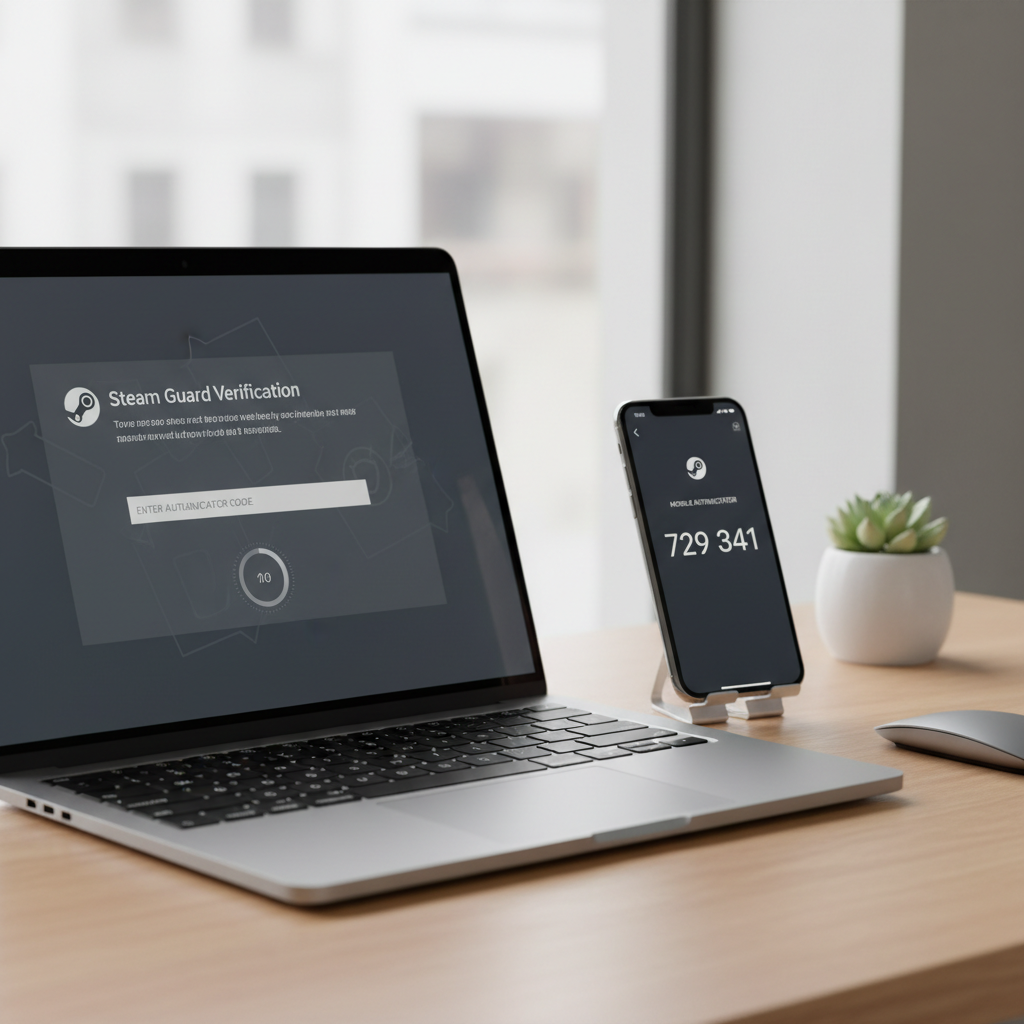
- Enable Steam Guard (Steam’s 2-step style protection). Many setups fail or require repeated verification without it.
- Confirm you can sign in successfully to both Steam accounts (owner and borrower) with email/Steam Guard access available.
- Decide where the games will be installed: shared library works best when the borrower installs to their drive, not a half-shared folder.
If you’re setting this up for kids or less techy family members, do the authorization yourself once, then have them log back into their own Steam account and test a single game. That “one clean test” is worth more than tweaking ten settings later.
Steam Family Share Setup: step-by-step tutorial (owner + borrower)
This is the core steam family share setup tutorial flow that works most consistently on Windows and macOS.
Step 1: On the borrower’s computer, sign into the owner’s Steam account
Yes, this is the part people hate, but it’s how authorization works. Open Steam on the borrower’s device and sign in as the owner. Complete Steam Guard verification if prompted.
Step 2: Enable Family Sharing on that device
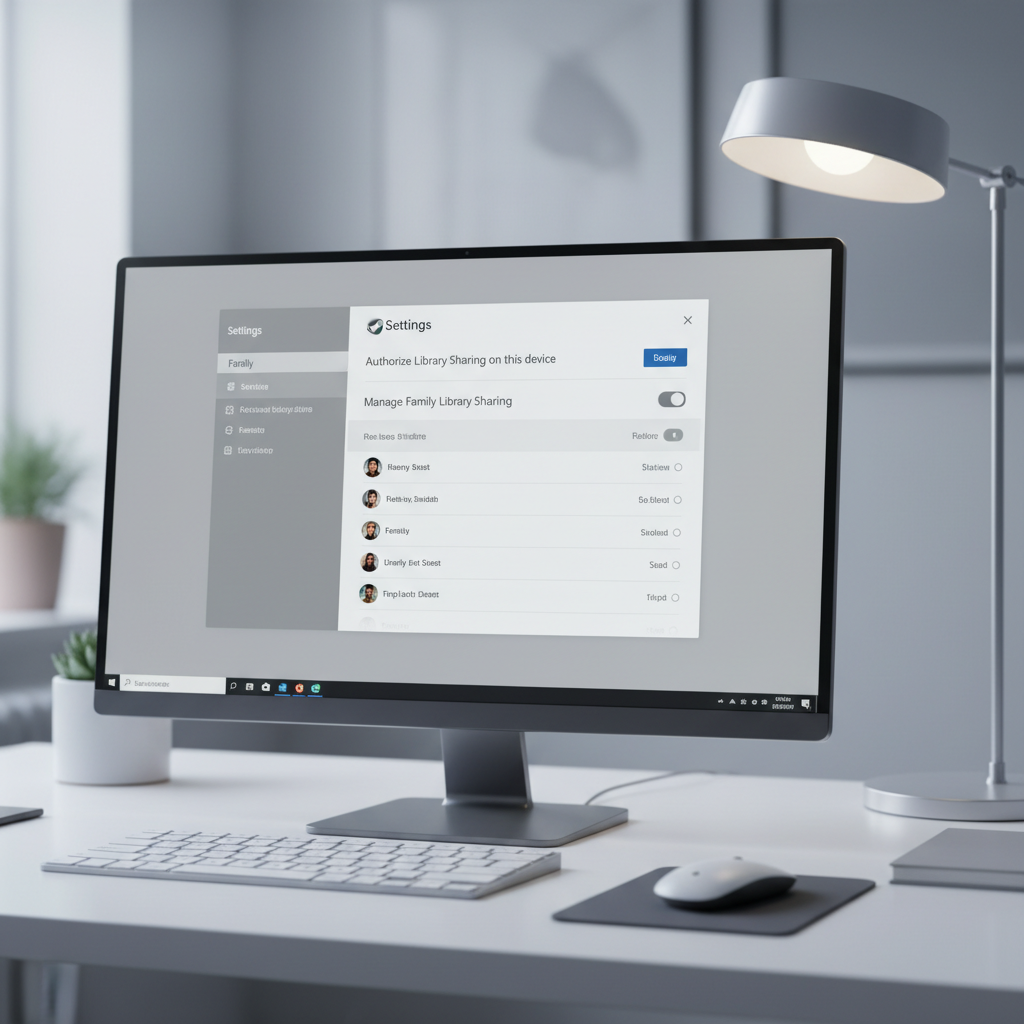
In Steam: Settings → (often “Family” or “Family/Library”) → enable the option that allows Library Sharing on this computer. You should see a list of local accounts you can authorize.
- Check “Authorize Library Sharing on this device” (wording can vary slightly).
- Select the borrower’s Steam account from the list, then authorize.
Step 3: Log out the owner account, log in as the borrower
After authorization, sign out of Steam, then sign in as the borrower. The shared library should appear, typically under a “Games from [OwnerName]” style grouping.
Step 4: Install a shareable game and run a quick test
Pick a game you know is eligible and not currently running on the owner’s PC. Install and launch it once. If it launches, your setup is basically done.
Self-test checklist: which situation are you in?
When someone says “Family Sharing doesn’t work,” they usually mean one of these situations. Find yours and jump to the matching fix.
- I don’t see the owner’s games at all (library never appears).
- I see games, but many say “Purchase” instead of “Borrow.”
- I get kicked out mid-game when the owner starts playing.
- Steam says I’m not authorized even though I did it already.
- Two people want to play different shared games at the same time.
Common problems and fixes (the ones that actually matter)
Here are the fixes that most often resolve Family Sharing issues without turning it into an all-day project.
Problem: The shared library doesn’t show up
- Re-check device authorization: you must authorize on the borrower’s device while signed in as the owner.
- Confirm you authorized the correct borrower account (families often have multiple Steam logins on the same PC).
- Restart Steam (fully exit, not just minimize), then sign in again.
Problem: Games appear, but show “Purchase”
- The title may be excluded from sharing due to publisher/DRM rules.
- The borrower might already own a different edition, DLC mismatch can confuse what’s playable.
- Try a known shareable title to confirm the feature works, then treat the missing title as a licensing exception.
Problem: Borrower gets kicked out when the owner plays
This is normal behavior in many cases. A shared library often functions like a single “license seat.” If you want both people playing simultaneously, the clean option is that the borrower plays a game they own while the owner plays theirs, or you buy a second copy where needed.
Problem: “Not authorized” keeps coming back
- Steam Guard issues: re-enable or re-sync Steam Guard on the owner account, then re-authorize.
- Too many device changes: frequent reinstalling or switching Windows accounts can trigger re-authorization needs.
- Shared/public PCs: libraries on internet cafes or constantly changing machines often behave unreliably for Family Sharing.
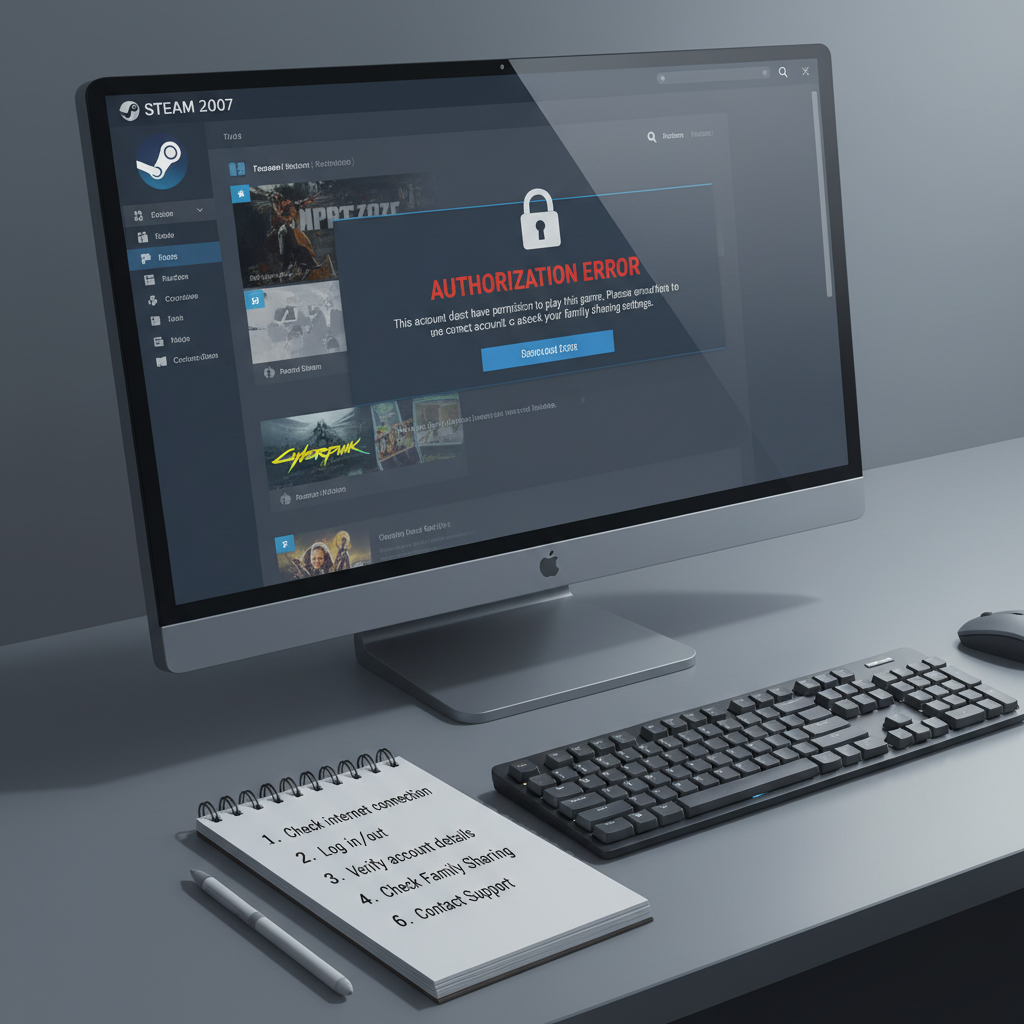
According to Steam (Valve) Support, Family Sharing access can be revoked by account actions or security events, so if you see repeated lockouts, treat it like a security signal too, not just a “settings bug.” If anything feels off, change passwords and review authorized devices.
How sharing works in real life: a simple table
This is the part people wish Steam explained upfront. Use this to set expectations with family members.
| Scenario | What usually happens | What to do |
|---|---|---|
| Borrower starts a shared game | Game launches if owner isn’t using the shared library | Play normally, avoid launching owner’s games elsewhere |
| Owner starts any game in their library | Borrower may get a timeout and lose access | Coordinate play time, or buy a second copy if needed |
| Game shows “Purchase” | Likely excluded from sharing | Test another title, check publisher/DRM limitations |
| Borrower plays offline | May work for some titles, but can be inconsistent | Use offline mode carefully, expect occasional re-checks |
| Multiple borrowers want the same library | Device authorization can be done, but simultaneous play is limited | Set a household rule: who plays shared games when |
Practical setup tips for families (less friction, fewer surprises)
You can follow every step correctly and still end up with daily mini-drama if expectations aren’t aligned. These tips help.
- Create a simple “play schedule” if multiple people share one library. It sounds silly until you need it.
- Keep the owner account secure: don’t leave it signed in on a kid’s device longer than needed for authorization.
- Use separate Windows/macOS user profiles when two people share one computer.
- Start with one game as a test before downloading 300GB of titles.
- Document which devices are authorized in a notes app, especially if you manage multiple PCs and a Steam Deck.
If your goal is “two people playing the same game together,” Family Sharing is often not the right tool by itself. In that case, look for Remote Play Together support or consider buying an additional copy, because licensing restrictions tend to be the real blocker.
Key takeaways + next steps
If you want the smooth version of Family Sharing, keep it boring: authorize the borrower’s device while signed in as the owner, then log back into the borrower account and test one shareable title. Most “it doesn’t work” reports come from skipping that exact sequence.
- Do the authorization on the borrower’s computer, using the owner login one time.
- Expect limitations around simultaneous play and non-shareable titles.
- Troubleshoot with intent: missing library, “Purchase” button, or lockout each point to different causes.
If you’re setting this up tonight, your best next move is simple: pick one device, run through the steps once, test one game, then scale to other devices only after that first success.
FAQ
Why do I need to sign into the owner account on the borrower’s PC?
Because the authorization is tied to the device. In many cases Steam needs the owner to approve that specific computer, then it allows the borrower account to access the shared library there.
Can two people play different games from the same shared library at the same time?
Often no. Steam Family Sharing commonly behaves like a single license seat for that library. If you need simultaneous play, plan on separate owned games or additional purchases for the same title.
Why are some shared games missing or only show “Purchase”?
Some titles are excluded from sharing due to publisher licensing, subscriptions, or third-party DRM. When this happens, it’s usually title-specific rather than a setup mistake.
Does Steam Family Sharing work on Steam Deck?
It can, but the same principles apply: device authorization and account sign-in order matter. If something feels inconsistent, re-check which account authorized the device and whether Steam Guard prompts were completed.
Is it safe to enter my Steam password on someone else’s computer?
It can be risky on devices you don’t fully trust. If you must authorize on a shared PC, log in only long enough to authorize, log out right away, and consider changing your password afterward if you have concerns.
What should I do if Family Sharing keeps disabling or forgetting authorization?
Start by updating Steam, confirming Steam Guard works, and re-authorizing the device. If it keeps happening, review account security and authorized devices; repeated prompts can indicate a security or device-state issue.
Can I share DLC and in-game items?
DLC sharing varies by game and licensing. Many times the base game shares more reliably than add-ons, and in-game items usually follow the game’s own account rules rather than Family Sharing.
If you’re trying to set this up across multiple PCs or you keep hitting “not authorized” loops, it may be easier to write down your household’s device list and do one clean authorization session per machine, rather than troubleshooting randomly each time.