
how to enable 120hz on ps5 for all games is a common search because the PS5 menus make it look like a simple toggle, but in real use it depends on your TV or monitor, your HDMI path, and whether each game actually supports 120fps.
If you set everything “right” and still see 60Hz, it usually isn’t your imagination, it’s one missing link: an HDMI 2.1 port you didn’t use, a receiver that can’t pass 120Hz, a TV setting like “Enhanced format” left off, or a game that tops out at 60 by design.

This guide focuses on the parts you can control, what “120Hz enabled” really means on PS5, how to verify it in supported games, and how to troubleshoot the cases where it simply won’t apply.
What “120Hz on PS5” really means (and why it’s not for every game)
On PS5, “120Hz” typically means the console can output up to 120 frames per second in games that include a 120fps mode. That is the key limiter: the console can’t force every title to run at 120fps if the developer never shipped that mode.
Also, a lot of people mix up three different things:
- 120Hz output: your display refresh rate capability.
- 120fps gameplay: the game’s frame rate mode.
- VRR (Variable Refresh Rate): smooths frame pacing when fps fluctuates, but does not magically turn 60fps into 120fps.
According to Sony Interactive Entertainment (PlayStation Support), PS5 supports 120Hz output on compatible displays, and game support varies by title and settings.
Compatibility checklist: TV/monitor, HDMI port, cable, and signal path
Before changing PS5 settings, confirm the hardware chain can carry a 120Hz signal. This is where most “it should work” setups quietly fail.
Quick “must-have” requirements
- A 120Hz-capable display (TV or monitor). Many 4K TVs are 60Hz even if marketing says “motion 240.”
- The correct HDMI port on the TV/monitor. Some sets only support 4K/120 on HDMI 3 or HDMI 4.
- An HDMI cable that can handle the bandwidth. The PS5 cable is usually fine. Very old or no-name cables often cause silent fallbacks.
- A clean signal path. Plugging PS5 into a soundbar/AVR/capture device can block 120Hz pass-through unless that device supports it.
Common “looks fine but blocks 120Hz” situations
- PS5 is connected to a receiver that only supports 4K/60.
- TV input is set to “Standard” instead of “Enhanced/4K 120/HDMI 2.1” mode.
- Monitor supports 120/144Hz over DisplayPort, but not over HDMI at the same resolution.
PS5 settings to enable 120Hz (the exact menu path)
Once your display chain supports it, you want PS5 to prefer higher refresh modes and to avoid unnecessary restrictions.
Step-by-step PS5 setup
- Go to Settings → Screen and Video → Video Output.
- Set Resolution to Automatic (or the highest your display supports reliably).
- Set 120 Hz Output to Automatic.
- Set VRR to Automatic if your display supports it (optional, but often helpful).
One setting people miss: game preset
- Go to Settings → Saved Data and Game/App Settings → Game Presets.
- Set Performance Mode or Resolution Mode to Performance Mode.
This does not force 120fps in unsupported titles, but it nudges supported games to pick higher frame rate modes by default.
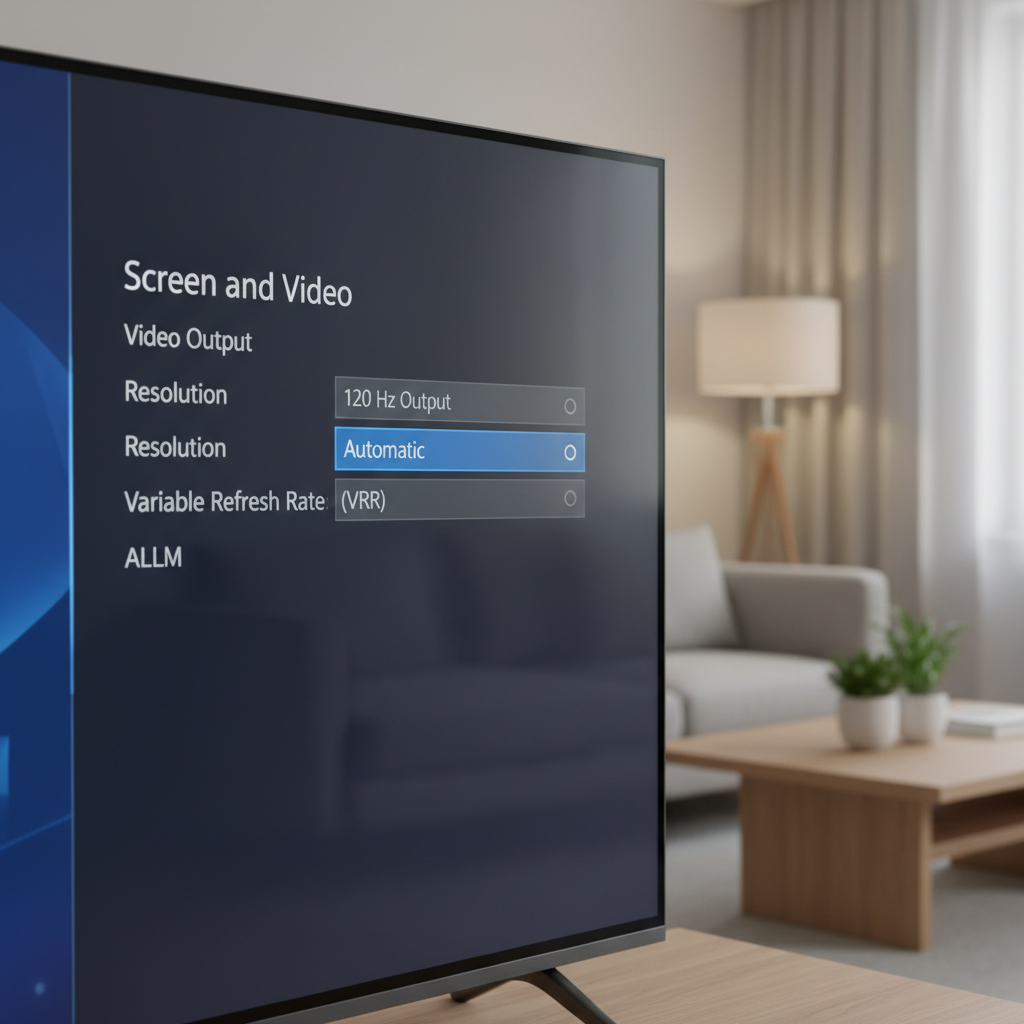
If you’ve been trying how to enable 120hz on ps5 for all games, this is the point where the console is “ready,” and the remaining question becomes game support plus your display reporting.
How to confirm you’re actually getting 120Hz in a supported game
Don’t rely on “it feels smoother” alone. Verify with the tools you already have.
Check the PS5 “Information for the Connected HDMI Device”
- PS5: Settings → Screen and Video → Video Output → Video Output Information
Look for the current output and supported frequencies. Some TVs will list 120Hz capability but still run the current output at 60Hz until a game switches modes.
Check inside the game settings
Many titles place it under Video or Graphics, often labeled:
- 120Hz Mode
- High Frame Rate Mode
- Performance Mode (sometimes separate from 120Hz)
Some games require you to restart the game after toggling. Not always obvious, but very common.
Use your TV/monitor info panel
Most TVs have an “Info” overlay showing current resolution/refresh rate. If it still shows 60Hz during gameplay, something in the chain is capping it.
Why 120Hz still won’t work: the most common blockers (and fixes)
This is the part where expectations need a small reset: even if you do everything right, some combinations won’t deliver 4K at 120Hz, and some games won’t offer 120fps at all.
Blocker: your TV input isn’t in enhanced mode
- Fix: In TV settings, enable the HDMI format that allows higher bandwidth (names vary: Enhanced, HDMI 2.1, 4K 120, Input Signal Plus).
- Also: turn on Game Mode to reduce latency and avoid processing that can interfere with timing.
Blocker: you’re going through an AVR/soundbar/capture card
- Fix: Connect PS5 directly to the TV’s 120Hz-capable port, then use eARC/ARC for audio back to the receiver or soundbar.
- If you must route through an AVR, confirm it supports 4K/120 pass-through on that specific input.
Blocker: the game supports 120fps only at lower resolution
Many games use dynamic resolution or drop to 1080p/1440p to hit 120fps. That’s normal, and often a good trade if you care about responsiveness.
Blocker: wrong cable or unstable handshake
- Fix: Use the PS5’s included HDMI cable, or a certified Ultra High Speed HDMI cable.
- Symptom: random black screens, flicker, or the console falling back to 60Hz.
Practical setup table: what to try based on your display
If you’re trying how to enable 120hz on ps5 for all games, it helps to think in “profiles” rather than one magic switch. Here’s a quick decision table.
| Your setup | Best PS5 settings to start | What you should expect |
|---|---|---|
| 4K TV with HDMI 2.1 (4K/120) | 120Hz Output: Auto, Game Preset: Performance, VRR: Auto (if supported) | 120fps in supported titles, sometimes dynamic resolution |
| 4K TV limited to 60Hz | 120Hz Output: Auto (won’t hurt), Game Preset: Performance | Mostly 60fps, but improved stability/low latency settings still help |
| 1440p 120/144Hz monitor | Resolution: 1440p (if available), 120Hz Output: Auto | Great chance of 120fps in supported games, sharp image |
| AVR/soundbar in the middle | Direct to TV for video, use eARC/ARC for audio | More reliable 120Hz, fewer handshake issues |
Key takeaways (the “don’t waste time” version)
- PS5 can’t force 120fps in every game; the title must support it.
- Set 120 Hz Output to Automatic, and use Performance Mode as your preset.
- Use the right HDMI port on your TV, and enable Enhanced/HDMI 2.1 input mode.
- If you route through other gear, go direct to the TV to rule out pass-through limits.
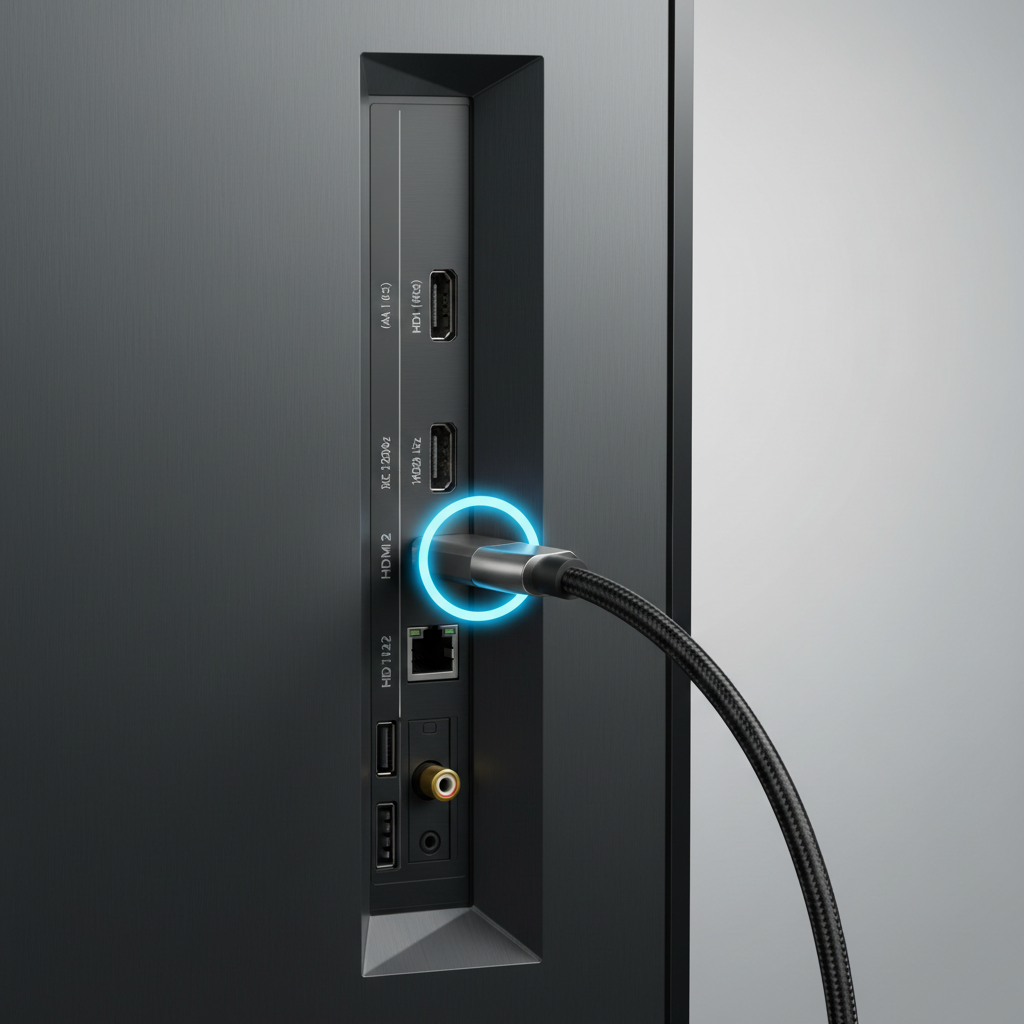
Once those are correct, you’re usually one in-game toggle away from seeing 120Hz actually engage.
Conclusion: enable what you can, and stop fighting what the game can’t do
The cleanest way to think about how to enable 120hz on ps5 for all games is this: you can prepare the console and display to allow 120Hz, but each game decides whether it will use it. Get the HDMI chain right, set PS5 to Automatic 120Hz and Performance Mode, then confirm inside supported games with a real on-screen refresh readout.
If you want one action step today, plug the PS5 directly into the TV’s known 4K/120 port, enable the TV’s enhanced HDMI mode, and re-check Video Output Information before you open a game.
FAQ
Can I force 120Hz on PS5 for every game?
Not really. You can enable 120Hz output on the console, but games without a 120fps mode will still run at their capped frame rate, often 30 or 60.
My TV says it supports 120Hz, but PS5 stays at 60Hz. Why?
Often the PS5 is on the wrong HDMI port, or the TV input is still set to a “Standard” format. Another common issue is going through a receiver or soundbar that can’t pass 120Hz.
Do I need HDMI 2.1 to get 120fps on PS5?
For 4K at 120Hz, HDMI 2.1 usually matters. Some displays can do 1080p or 1440p at 120Hz over HDMI 2.0, so it depends on your specific TV/monitor.
Does Performance Mode automatically turn on 120fps?
It helps, but it’s not guaranteed. Many supported games still require enabling “120Hz Mode” or “High Frame Rate” inside the game’s video settings.
Will VRR give me 120fps in games that don’t support it?
No. VRR can make frame rate drops feel smoother when the fps fluctuates, but it won’t increase a game’s maximum frame rate beyond what the game renders.
Why does the picture look less sharp in 120fps mode?
Many titles lower resolution or use more aggressive dynamic resolution to maintain higher frame rates. That trade-off is pretty normal for 120fps modes.
What’s the fastest troubleshooting step if 120Hz won’t enable?
Connect PS5 directly to the TV’s 120Hz HDMI port using the PS5 cable, enable the TV’s enhanced HDMI format, then re-open the game and check both the game setting and the TV info overlay.
If you’re still stuck after checking ports, TV input format, and the game’s own 120fps toggle, you might want a short list of display-specific steps for your exact TV model, it’s usually faster than guessing through menus that every brand names differently.