
how to upgrade ram for gaming laptop is usually a practical way to reduce stutter, speed up loading, and make multitasking less painful, as long as your model actually allows RAM upgrades and you buy compatible modules.
Gaming laptops sit in a weird middle ground, they’re powerful but compact, and that means upgrade paths vary a lot by brand, year, and chassis. Some models have two accessible SO-DIMM slots, others have one slot plus soldered memory, and a few are fully soldered with no upgrade option.
This guide walks you through a safe, real-world flow: figure out whether RAM is your bottleneck, confirm what your laptop supports, choose the right kit, install it without damaging anything, then verify it’s running at the speed you expect.
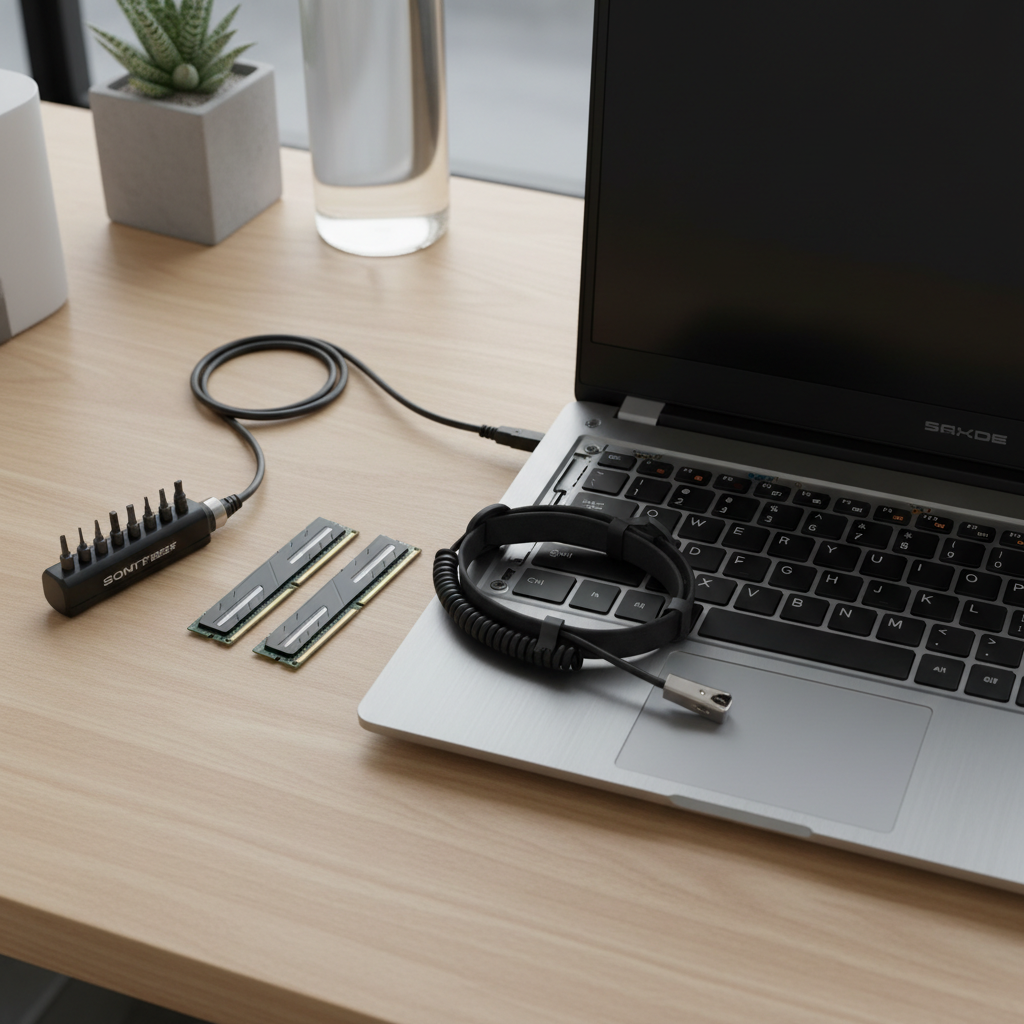
When a RAM upgrade actually helps (and when it won’t)
Before you open a chassis, it’s worth confirming you’re fixing the right problem. RAM upgrades help most when your system runs out of memory and starts paging to storage, even fast SSDs feel slow compared to RAM.
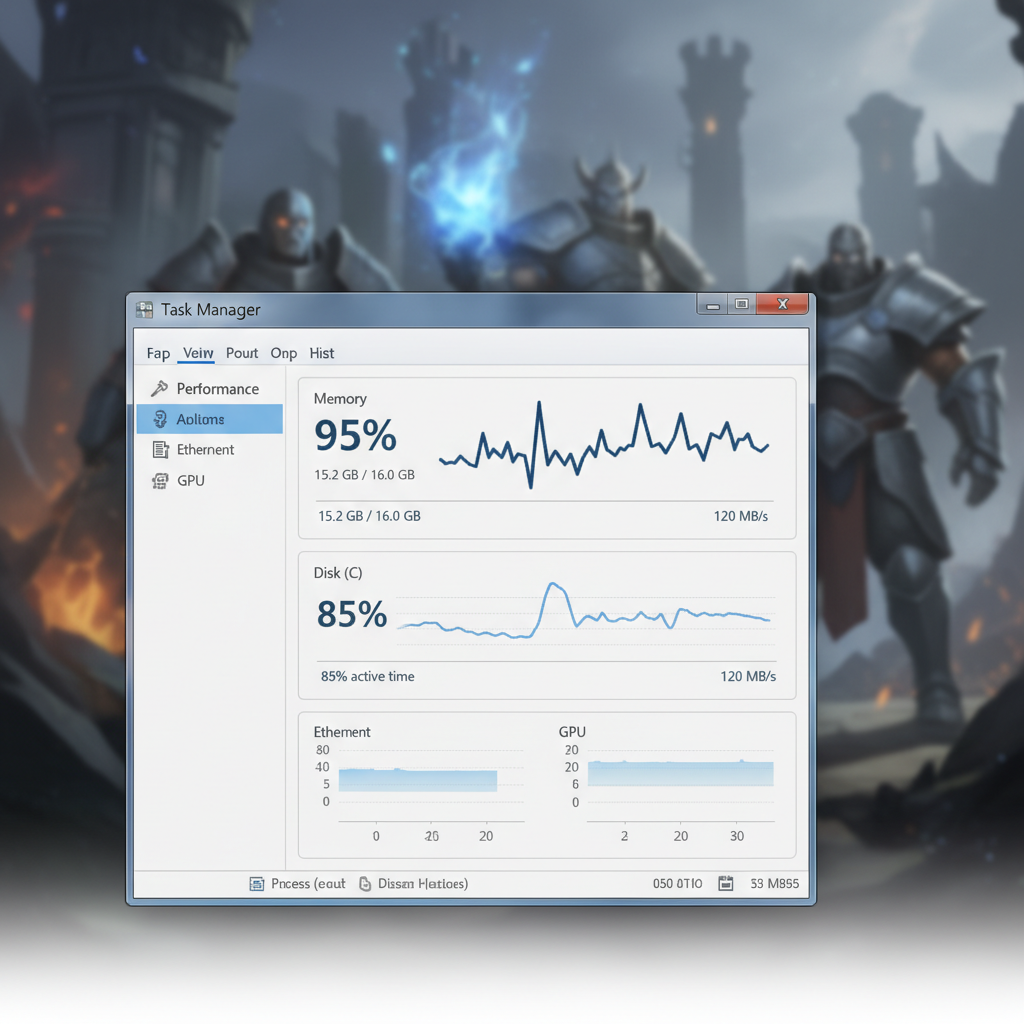
- Good signs you need more RAM: frequent hitching when alt-tabbing, browser + Discord + game causing spikes, “out of memory” crashes in modded games, high RAM use near 90–100% in Task Manager.
- Mixed results: higher average FPS in some titles, but the bigger win is often smoother 1% lows and fewer micro-stutters, especially in open-world games.
- Not a RAM problem: GPU-bound FPS limits, thermal throttling, or a weak CPU, RAM won’t magically fix these.
Quick check: open Windows Task Manager while gaming, if Memory is maxed and Disk activity jumps at the same time, RAM is a strong suspect.
Check your laptop’s RAM upgradeability and limits
This is the step many people skip, then they end up with sticks that don’t fit, don’t boot, or run slower than expected. You want to confirm three things: form factor, generation, and maximum capacity.
What to verify (in plain English)
- SO-DIMM vs DIMM: laptops almost always use SO-DIMM (shorter modules).
- DDR version: DDR4 and DDR5 are not interchangeable.
- Max capacity: your motherboard/BIOS may cap total RAM even if larger sticks exist.
- Slot layout: two slots, one slot + soldered, or fully soldered.
Where to find it: your laptop’s support page and service manual are the most reliable. According to Crucial (its system scanner and compatibility database), matching RAM type and supported capacity is the main factor for a successful laptop memory upgrade.
Choosing the right RAM: capacity, speed, and matching sticks
Buying RAM is less about chasing the highest MHz number and more about buying what your laptop can actually run. In many cases, the system will downclock faster memory to the laptop’s supported speed, which is fine, but you should know what you’re paying for.
Capacity: what most gaming laptops benefit from
- 16GB: still workable for many esports titles and lighter multitasking, but it can feel tight with modern AAA games plus background apps.
- 32GB: a common “comfortable” target for current gaming + streaming, modded games, creative apps, and heavy browser use.
- 64GB: typically for specific workloads (VMs, large creative projects), not required for most gaming-only setups.
Dual-channel vs single-channel (why matching matters)
Many gaming laptops gain performance consistency when RAM runs in dual-channel (two sticks working together). If you currently have 1x16GB, moving to 2x16GB often feels better than only increasing capacity, depending on the game and your GPU/CPU balance.
Quick buying table
| Current setup | Common upgrade | Who it fits | Notes |
|---|---|---|---|
| 8GB (1 stick) | 16GB (2x8) | Budget gaming, school + gaming | Often a big smoothness bump |
| 16GB (1x16) | 32GB (2x16) | AAA games, streaming, heavy multitasking | Dual-channel + more headroom |
| 16GB (2x8) | 32GB (2x16) | Most modern gaming laptops | Simple swap if two slots exist |
| 16GB soldered + 1 slot | Add 16GB or 32GB stick | Mixed upgradeable designs | May run “flex mode” memory |
Key point: if your laptop supports XMP/EXPO settings (many laptops don’t), you may need BIOS options to hit rated speeds. Otherwise, expect JEDEC default speeds, which is normal for laptops.
Tools, prep, and safety (small steps that prevent big mistakes)
You don’t need a workshop, but you do need patience. RAM installs are easy until they aren’t, most issues come from forcing clips, stripping screws, or forgetting about static.
- Tools: small Phillips screwdriver, plastic pry tool (optional), a container for screws.
- Anti-static: avoid carpet, touch a grounded metal object before handling parts, or use an anti-static wrist strap if you have one.
- Power: shut down fully, unplug AC, and if your model allows it, disconnect the battery after opening.
According to iFixit, using the correct bit size and avoiding unnecessary force reduces the risk of stripped screws and broken clips during device repairs.
Step-by-step: how to upgrade RAM for gaming laptop
how to upgrade ram for gaming laptop comes down to a consistent routine, confirm compatibility, open the back panel, seat the modules correctly, then validate in Windows and BIOS.
1) Confirm what’s inside right now
- Windows: Task Manager → Performance → Memory (check total and speed)
- For slot details: tools like CPU-Z can show channel and SPD info, but the service manual is still the best source
2) Power down and open the bottom panel
- Shut down (not Sleep), unplug, hold power button ~10 seconds after unplugging to discharge residual power
- Remove screws, then gently pry the panel if clips exist
3) Locate SO-DIMM slots and remove old modules if needed
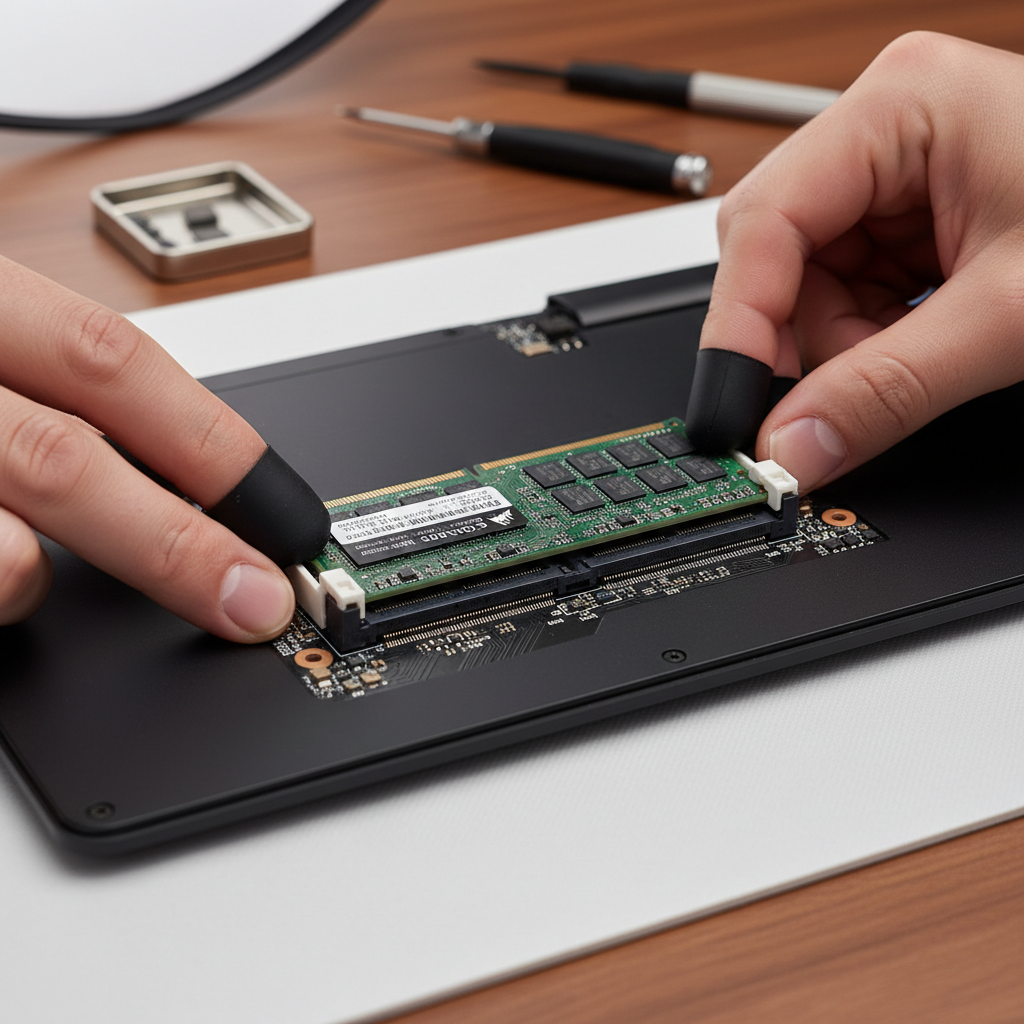
- Spread the side clips outward, the stick pops up at an angle
- Pull it out along the same angle, don’t twist
4) Install new RAM sticks
- Match the notch, insert at about a 25–35° angle
- Push in firmly until fully seated, then press down until clips click into place
5) Reassemble and boot
- Reconnect battery (if disconnected), close panel, reinstall screws snugly but not over-tight
- First boot may take longer while memory trains, that’s common on DDR5 systems
Verify it worked and troubleshoot common issues
After boot, don’t assume everything runs perfectly. Spend two minutes checking capacity and stability, it can save hours of weird crashes later.
Verification checklist
- Task Manager shows the new total RAM
- Speed looks reasonable for your platform (some laptops will show a lower number than the kit rating)
- No random reboots, blue screens, or game crashes under load
If the laptop won’t boot
- Reseat the modules, most “dead boot” cases are slightly unseated sticks
- Try one stick at a time to identify a bad module or slot
- Reset BIOS/CMOS if your model supports it
- If you still can’t boot, reinstall the original RAM and re-check compatibility
According to Microsoft, the Windows Memory Diagnostic tool can help identify memory problems, but intermittent issues may still require deeper testing or professional diagnosis.
Practical tips for real-world gains in games
More RAM gives you headroom, but you’ll feel it most when you also clean up what competes for memory and reduce paging.
- Close heavy background apps before launching demanding games, especially browsers with lots of tabs.
- Keep a system-managed page file in Windows unless you have a specific reason not to, disabling it can create stability problems in some games.
- Pair RAM with storage sanity: if you’re on an old HDD (rare in gaming laptops now), an SSD upgrade often feels bigger than RAM.
- Watch temperatures: thermal throttling can look like “RAM stutter,” monitoring tools can clarify what’s happening.
Conclusion: a safe upgrade path that avoids wasted money
how to upgrade ram for gaming laptop is mostly about doing the boring homework, checking upgradeability, buying the right SO-DIMM type and capacity, and seating the modules correctly. If you’re hitting memory limits today, moving to 32GB is often the sweet spot for modern gaming and multitasking.
If you want one action to take right now, open Task Manager during a typical gaming session and note peak memory use, then cross-check your laptop’s service manual for the maximum supported RAM before you order anything.
FAQ
How do I know if my gaming laptop RAM is upgradeable?
Look up your exact model’s service manual or support page and confirm it has SO-DIMM slots. If the spec sheet says “onboard” or “soldered” only, upgrades may not be possible.
Will upgrading RAM increase FPS in games?
Sometimes, but it depends on the bottleneck. RAM upgrades more reliably improve smoothness and reduce stutter when you were running out of memory, pure FPS gains are more common when moving from single-channel to dual-channel.
Is 16GB enough for gaming in 2026?
For many esports titles, yes, but modern AAA games plus Discord, browser tabs, and launchers can push systems close to the limit. A lot of players end up happier at 32GB because it adds breathing room.
Can I mix different RAM brands or speeds?
Mixing can work, but it’s a gamble. In many cases, the system runs both sticks at the slowest common speed and timings, and mismatched kits can cause instability, a matched kit is usually safer.
What type of RAM do gaming laptops use, DDR4 or DDR5?
It varies by generation and model year. Your laptop uses one or the other, and they are not interchangeable, checking Task Manager, BIOS, or the manufacturer’s spec page is the quickest way to confirm.
Do I need to change BIOS settings after installing new RAM?
Usually no, laptops typically auto-detect and configure memory. Some models offer XMP-like options, but many don’t, so the RAM may run at standard JEDEC speeds by design.
What if I’m not comfortable opening my laptop?
That’s reasonable, especially if your model is tricky to open or still under warranty. A local repair shop or the manufacturer’s service option can install compatible RAM for you, and they can also check for other issues like thermal throttling.
If you’re trying to avoid compatibility surprises, use a memory compatibility tool from a reputable vendor, confirm your exact model number, and buy from a retailer with a straightforward return policy, it makes the whole upgrade less stressful.