
How to fix low fps in high end pc usually comes down to a handful of boring but fixable causes: the game is running on the wrong GPU, a setting like ray tracing or resolution scaling is doing more damage than you think, drivers are messy, or your CPU/GPU can’t sustain boost clocks because of temps or power limits.
That’s why low FPS feels so frustrating on a high-end build, you paid for headroom, yet the experience looks like midrange hardware. The good news is most “mystery FPS drops” are diagnosable in under an hour if you check the right things in the right order.
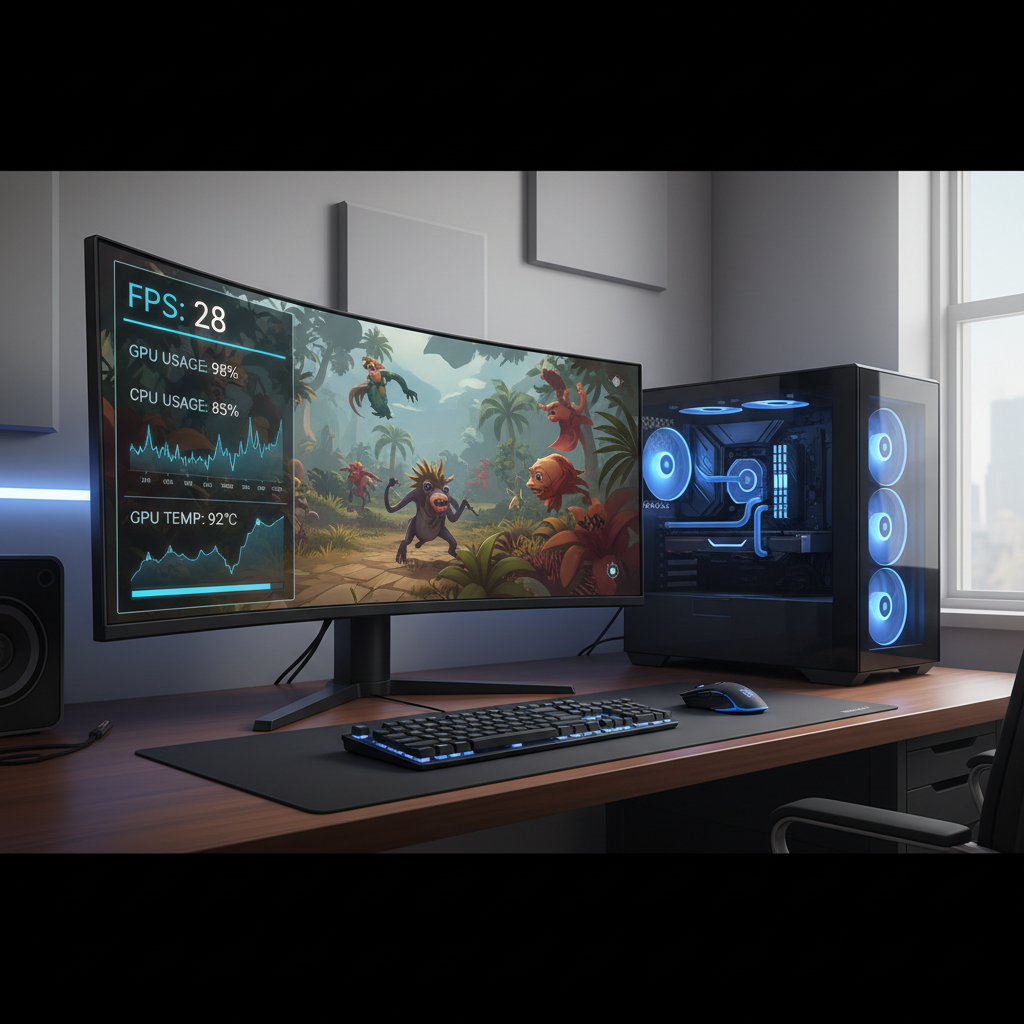
I’ll walk through quick checks first, then the deeper fixes that actually move FPS, plus a simple table to match symptoms to likely causes. You don’t need to be a hardware engineer, but you do need to look at utilization, clocks, and frame-time consistency, not just the average FPS number.
Start with a 10-minute reality check (it catches the usual suspects)
If you want fast wins, do these before you reinstall anything. They’re the stuff people skip because it “seems too simple,” yet it resolves a lot of cases.
- Confirm the monitor cable and refresh rate: HDMI/DP plugged into the discrete GPU, not the motherboard, then set the display refresh rate in Windows.
- Make sure the game uses the right GPU: laptops and some desktops can default to integrated graphics for specific apps.
- Disable any FPS caps you forgot about: in-game limiter, NVIDIA/AMD driver limiter, V-Sync, or a frame cap in a launcher.
- Check power plan: Windows “Balanced” is often fine, but weird low clocks can show up on misconfigured systems.
- Close overlays and background capture: not all overlays hurt performance, but some do, test with them off.
According to Microsoft, Game Mode is designed to prioritize gaming processes and can help reduce background interference, but results vary by system and workload, so treat it as a toggle to test rather than a guaranteed fix.
Use one overlay to identify the real bottleneck (CPU, GPU, VRAM, or something else)
Guessing wastes time. Turn on an overlay and watch what happens during the exact moments FPS feels “wrong.” You’re looking for patterns, not perfection.
Use one of these: NVIDIA FrameView, AMD Adrenalin metrics, Intel PresentMon, or MSI Afterburner + RivaTuner. Track: GPU usage, CPU usage per core, GPU clock, CPU clock, temps, VRAM usage, and frame time (not only FPS).
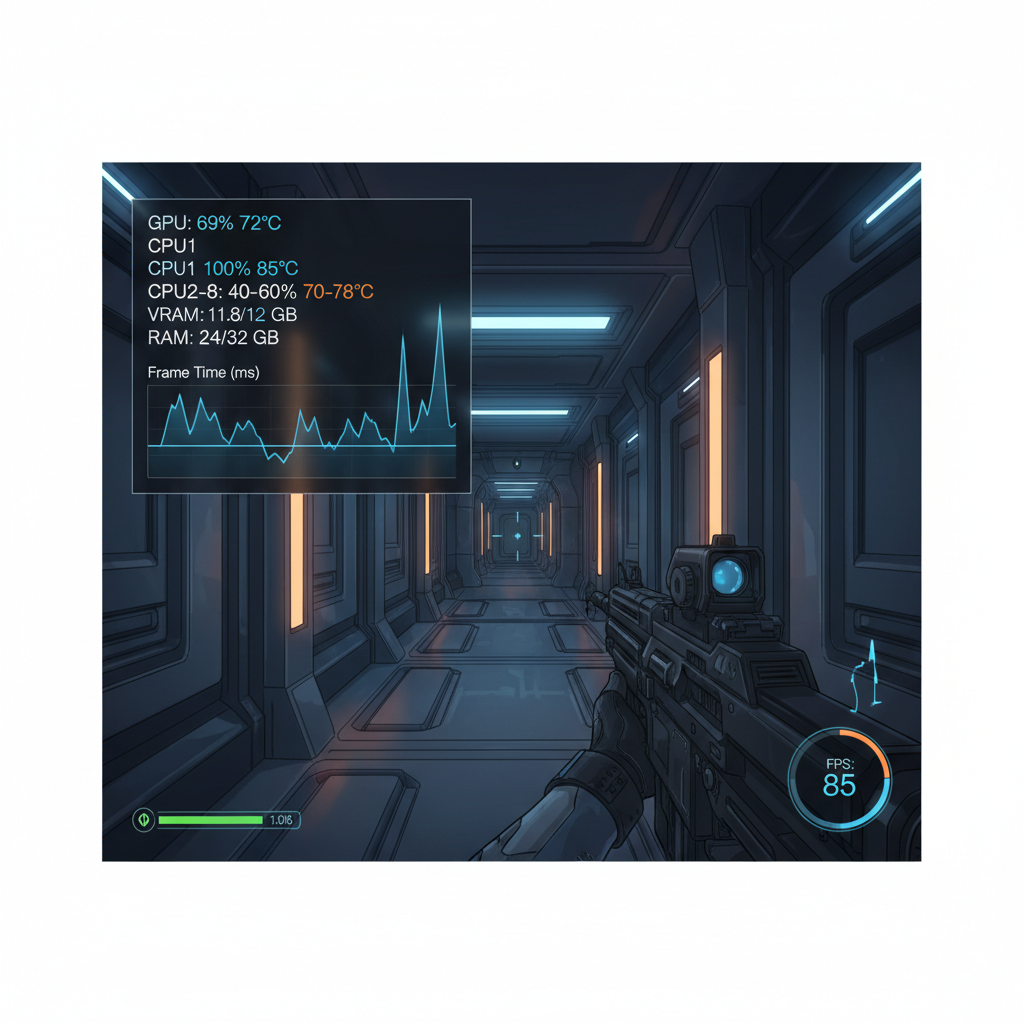
Here’s the quick interpretation that usually tells you what to do next:
- GPU usage stays 95–99% and FPS is low: you’re GPU-limited, reduce GPU-heavy settings or fix GPU throttling.
- GPU usage swings low (50–80%) while one CPU core hits 90–100%: you’re CPU-limited, often by settings like crowd density, view distance, or poor background CPU load.
- VRAM nearly full then stutters: texture settings or resolution may be too high, or you have a VRAM leak/bug in that title.
- Clocks drop when temps rise: thermal throttling or power limits, even on “high-end” cards, especially in small cases.
- Frame time spikes but average FPS looks okay: driver issues, shader compilation, storage hiccups, or unstable CPU/RAM/GPU tuning.
Symptom-to-cause table (so you stop chasing random tweaks)
This table is the fastest way to map what you see into a plan. You don’t need all of these at once, pick the row that matches your situation.
| What you see | Likely cause | What to try first |
|---|---|---|
| Low FPS only in one game | Game patch bug, shader cache, settings mismatch | Reset graphics settings, rebuild shader cache, verify files |
| Low GPU usage, one CPU core pegged | CPU bottleneck, background tasks, bad scheduler behavior | Close background apps, check CPU temps/clocks, lower CPU-heavy settings |
| FPS drops after 10–20 minutes | Thermal throttling or power limit | Check temps, fan curves, case airflow, power limits |
| Stutter when turning camera | Shader compilation, asset streaming, slow storage path | Let shaders compile, move game to SSD/NVMe, check drive health |
| Random hitching, audio crackle | Driver conflict, unstable overclock/undervolt, DPC latency issues | Revert tuning, clean driver install, remove conflicting utilities |
| Good FPS but feels choppy | Frame pacing, VRR/V-Sync mismatch | Enable G-Sync/FreeSync properly, set sensible frame cap |
Fix the most common software culprits (drivers, settings, Windows)
A high-end GPU can still underperform if the software stack gets messy. Don’t blindly “update everything,” be intentional and test after each change so you know what helped.
Do a clean-ish GPU driver reset
- Update to a stable WHQL driver when possible, not necessarily the newest hotfix.
- If you suspect driver corruption or conflicts, use a clean install option in the driver installer, or use DDU in Safe Mode if you know what you’re doing.
- Remove old overlays and tuning tools you no longer use, two tools fighting over fan curves can create weird behavior.
According to NVIDIA, driver updates can include game-specific optimizations and bug fixes, but compatibility varies across titles, so if performance got worse right after an update, rolling back one version is a reasonable test.
Reset game graphics settings, then re-enable the right ones
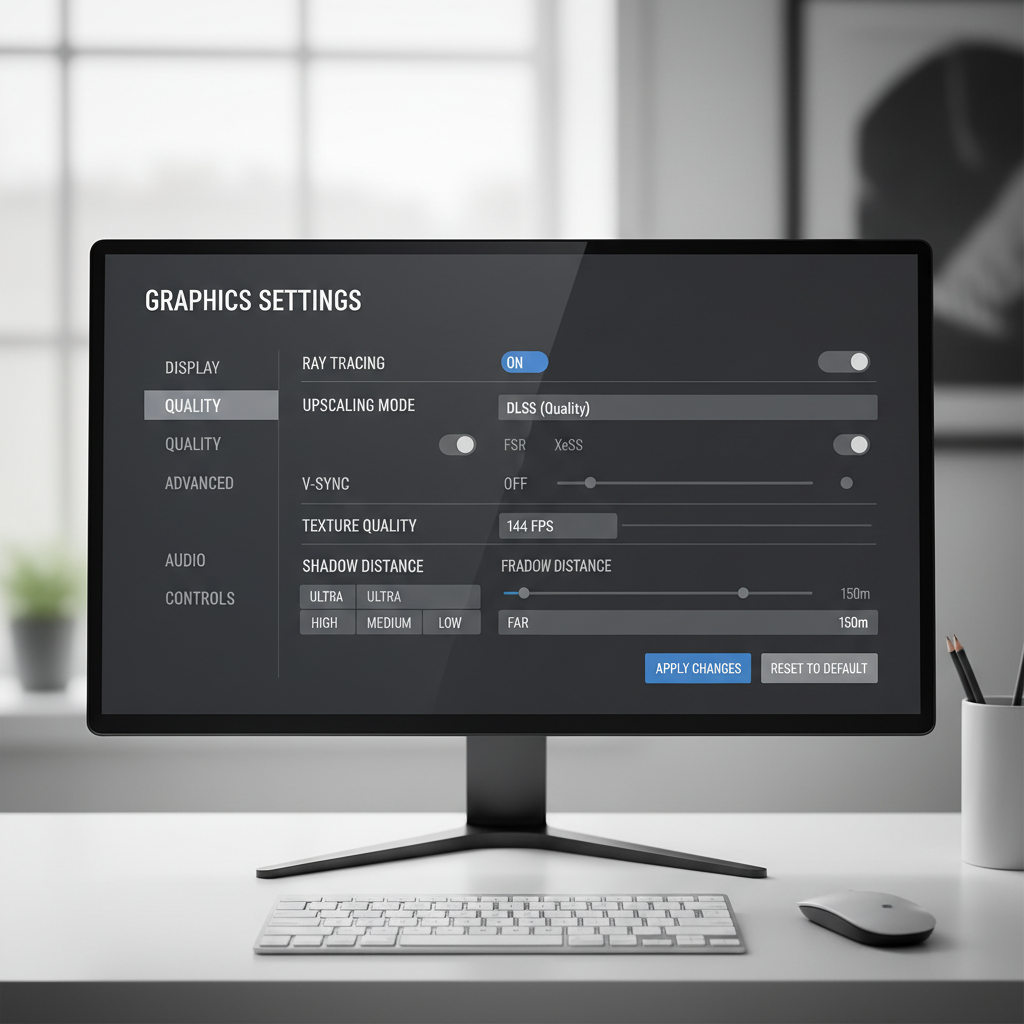
On high-end rigs, the “Ultra preset” is often the trap. Ultra usually targets visuals, not performance efficiency. Try this approach:
- Start at High preset, then raise textures (if VRAM allows).
- Be cautious with ray tracing, path tracing, and heavy global illumination options.
- Use DLSS/FSR/XeSS thoughtfully, quality modes often look great and lift FPS, while aggressive modes can cause shimmer.
- Lower CPU-heavy options: crowds, simulation, view distance, shadows distance.
Check Windows settings that quietly impact gaming
- Hardware-accelerated GPU scheduling (HAGS): can help some systems, can hurt others, test on/off.
- Xbox Game Bar / background recording: turn off capture features temporarily and compare.
- Core Isolation / Memory Integrity: on some PCs it can reduce performance; only change this if you understand the security trade-off.
- Game Mode: test it, keep it if it helps and stays stable.
According to Microsoft, features like Core Isolation are security-focused; changing them can affect protection posture, so if you’re unsure, keep defaults and look for performance wins elsewhere.
Thermals and power: the “high-end but slow” classic
If FPS starts fine then drops, or your clocks look suspiciously low, treat thermals and power delivery as suspects. This is common in compact cases, dusty filters, or builds with conservative fan curves.
- Check temperatures under load: CPU package and GPU hotspot matter more than idle temps.
- Look for clock drops: if clocks fall while temps climb, that points to throttling.
- Set a sensible fan curve: louder but stable often beats quiet and throttled.
- Confirm PSU health and cabling: make sure GPU power connectors are seated, and avoid questionable adapters.
Undervolting can help on many GPUs by reducing heat while keeping performance similar, but it also introduces instability if pushed too far, so move in small steps and validate with long sessions, not a 2-minute benchmark.
RAM, storage, and “stutter that looks like low FPS”
A lot of people search how to fix low fps in high end pc when the real complaint is stutter, hitching, or frame-time spikes. Average FPS hides that.
Memory basics that matter more than people expect
- Enable XMP/EXPO in BIOS if it’s off, otherwise your RAM may run at a low default speed.
- Confirm dual-channel operation, wrong slots can cut memory bandwidth.
- If you run manual CPU/RAM tuning, back it off temporarily to test stability.
Storage and asset streaming
- Install games on SSD/NVMe when possible, open-world titles stream assets constantly.
- Keep some free space on the game drive, very full drives can behave poorly.
- Verify files and clear shader caches if a specific title stutters after updates.
According to Intel, frame-time analysis (not just FPS) helps diagnose stutter and responsiveness issues, which is why tools like PresentMon are useful for pinpointing what’s actually happening during spikes.
A practical fix plan (do this in order, stop when it’s solved)
This is the sequence I’d use if I had your PC on the desk and wanted a clean answer fast, without turning it into a week-long hobby project.
- Step 1: Verify display connection to GPU, refresh rate, no hidden FPS caps.
- Step 2: Run one overlay, identify GPU-limited vs CPU-limited vs VRAM vs thermal/power.
- Step 3: Reset in-game graphics, then tune: textures up, ray tracing and heavy shadows down, set a reasonable frame cap just under refresh for VRR.
- Step 4: Clean driver install or rollback if the problem started after a driver change.
- Step 5: Validate thermals: clean filters, improve airflow, adjust fan curves, check mounting pressure if CPU runs hot.
- Step 6: Confirm XMP/EXPO, dual-channel, and stability at stock settings.
- Step 7: Only now consider OS repair, full reinstall, or hardware swaps.
Key takeaway: don’t chase “optimization packs” or registry tweaks until you’ve proven the bottleneck with metrics, those steps often add risk without predictable gains.
When it’s time to get professional help (or at least a second set of eyes)
If you’re seeing repeatable crashes, black screens, burning smells, or the PC shuts down under load, stop stress testing and consider a reputable local repair shop or the system integrator warranty. Electrical and thermal faults can get worse with repeated heavy load.
Also consider help if you suspect BIOS settings, PSU issues, or repeated instability after reverting everything to stock, at that point hardware diagnostics saves time and avoids guessing.
Conclusion: get the “high-end” performance you paid for
Fixing low FPS on a strong PC is usually less about one magic setting and more about eliminating the one constraint dragging everything down, wrong GPU path, bad settings, driver conflicts, unstable tuning, or heat and power limits.
If you want a simple next move, run an overlay for 10 minutes in the exact game scene that feels bad, then apply only the fixes that match what the metrics show, you’ll get to a stable, smooth result much faster.
FAQ
- Why is my high-end GPU not at 99% usage in games?
Many times it means the game is CPU-limited, waiting on one busy core, or it’s hitting a frame cap or V-Sync limit. Check per-core CPU load and whether a limiter is active. - How do I tell if I’m CPU-bound or GPU-bound?
Watch GPU utilization and frame time. If GPU stays near max and lowering resolution boosts FPS a lot, you’re likely GPU-bound. If GPU usage stays lower and one CPU core stays pegged, it’s typically CPU-bound. - Can ray tracing alone cause “low FPS” on a top-tier PC?
Yes, especially in titles with heavy RT or path tracing, the performance cost can be huge. Try disabling RT or switching to a lighter RT preset, then use DLSS/FSR quality modes. - Does enabling XMP/EXPO really matter for FPS?
Often it does, especially for CPU-limited games. If RAM runs at a default low speed, minimum FPS and frame-time stability can suffer even when the GPU is strong. - Should I use DDU to fix driver issues?
DDU can help when a normal reinstall doesn’t, but it’s a more advanced step. If you’re not comfortable, try the driver “clean install” option first, or ask someone experienced. - Why do I get stutters even when FPS looks high?
That’s usually frame-time spikes from shader compilation, asset streaming, background tasks, or unstable overclocks. Measure frame time and test with stock settings and fewer overlays. - What’s a safe frame cap for smoother gameplay?
With G-Sync/FreeSync, many setups feel smoother with a cap slightly below monitor refresh (for example 141 on a 144Hz display). Exact values vary by game and system, so test for consistency.
If you’re trying to fix low FPS and want a more “no guesswork” path, share your GPU/CPU model, monitor resolution/refresh, and a short screenshot of your overlay (usage, clocks, temps, frame time), it’s usually enough to point to the one change that matters most.