
Best hdr settings for gaming monitor usually come down to one thing: matching your monitor’s real HDR capability with the right Windows/console toggles so games stop looking gray, blown out, or oddly dim.
If you have ever switched HDR on and thought, “This looks worse,” you are not alone. HDR is picky, and a lot of monitors market “HDR” without the brightness, local dimming, or tone mapping needed to make it effortless.
This guide focuses on settings you can actually change today, plus quick tests to tell whether the problem is the display, the game, or Windows/console calibration. I’ll also flag the common traps that waste hours.
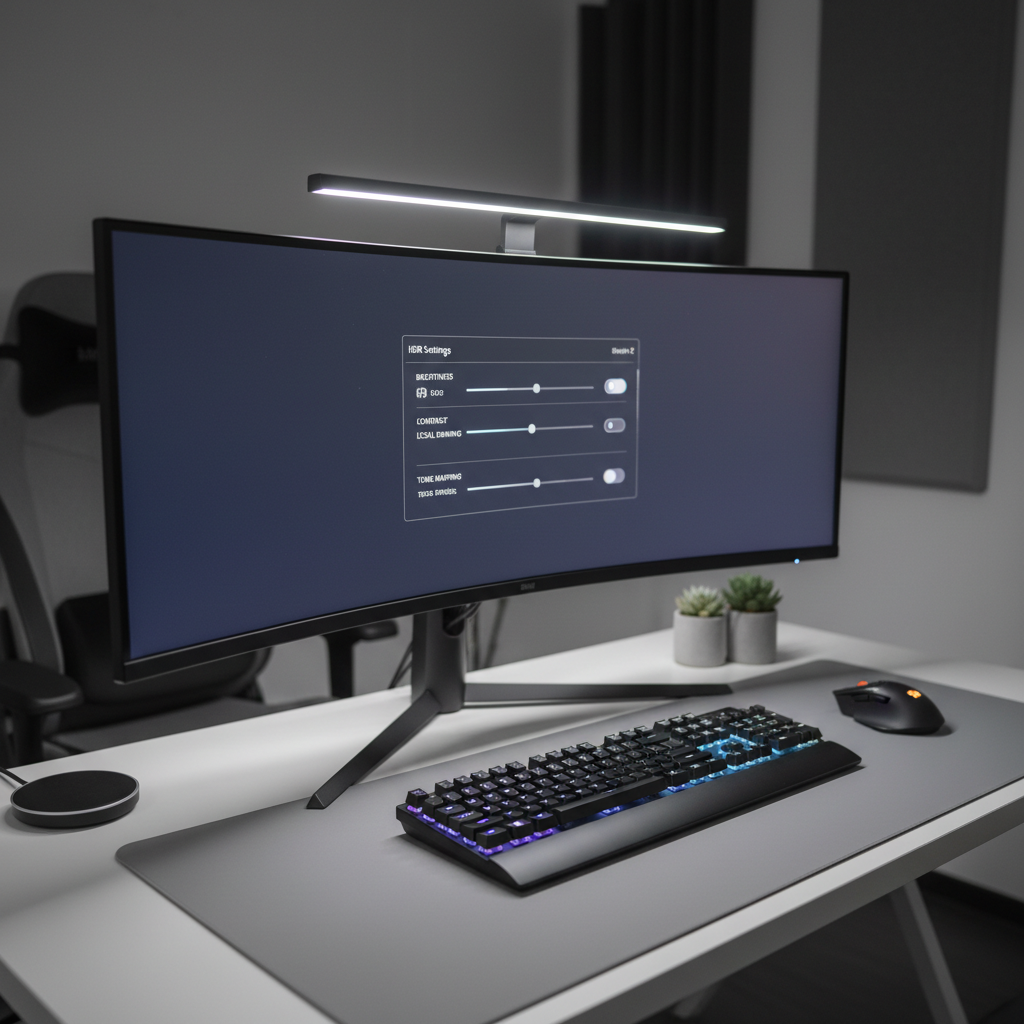
Why HDR looks bad on some gaming monitors
Before you chase sliders, it helps to know what typically breaks HDR. Most “bad HDR” complaints fall into a few patterns, and the fix depends on which one you have.
- Not enough peak brightness: Many HDR-capable displays top out around 300–400 nits, which often cannot deliver impactful highlights in HDR games.
- No (or weak) local dimming: Edge-lit panels or basic dimming zones can create lifted blacks, blooming, or inconsistent contrast in dark scenes.
- Wrong tone mapping: If the monitor, GPU/console, and the game all try to “map” HDR at once, highlights clip or midtones look flat.
- SDR content shown in HDR mode: Desktop apps, web video, and older games can look washed out when forced into HDR.
- Game HDR implementations vary: Some titles do HDR well, others feel like an afterthought with odd defaults.
According to Microsoft, HDR on Windows depends on both display capability and correct calibration and settings in Windows and the app or game. In practice, that means you want one consistent pipeline, not a stack of competing “enhancements.”
Quick self-check: what kind of HDR setup do you really have?
This is the fastest way to avoid chasing settings your hardware cannot deliver. You do not need lab tools, just honest expectations.
Checklist (2 minutes)
- Find your panel type: OLED usually excels in blacks and per-pixel contrast, IPS often needs strong dimming to look convincing in HDR.
- Look up peak brightness and dimming: If your monitor has no local dimming, HDR can still work, but “wow” highlights may be limited.
- Confirm the connection: Use DisplayPort 1.4 or HDMI 2.0/2.1 depending on resolution/refresh. Bad cables can cause flicker or limited color.
- Verify color depth: In GPU settings, prefer 10-bit output when available, but do not sacrifice stability at your target refresh rate.
- Check if you want HDR always-on: Many people keep HDR off on the desktop and only enable it for HDR games.
If your monitor is “HDR400” with no meaningful dimming, the best hdr settings for gaming monitor will be about damage control: preserving contrast, stopping clipping, and keeping SDR readable.
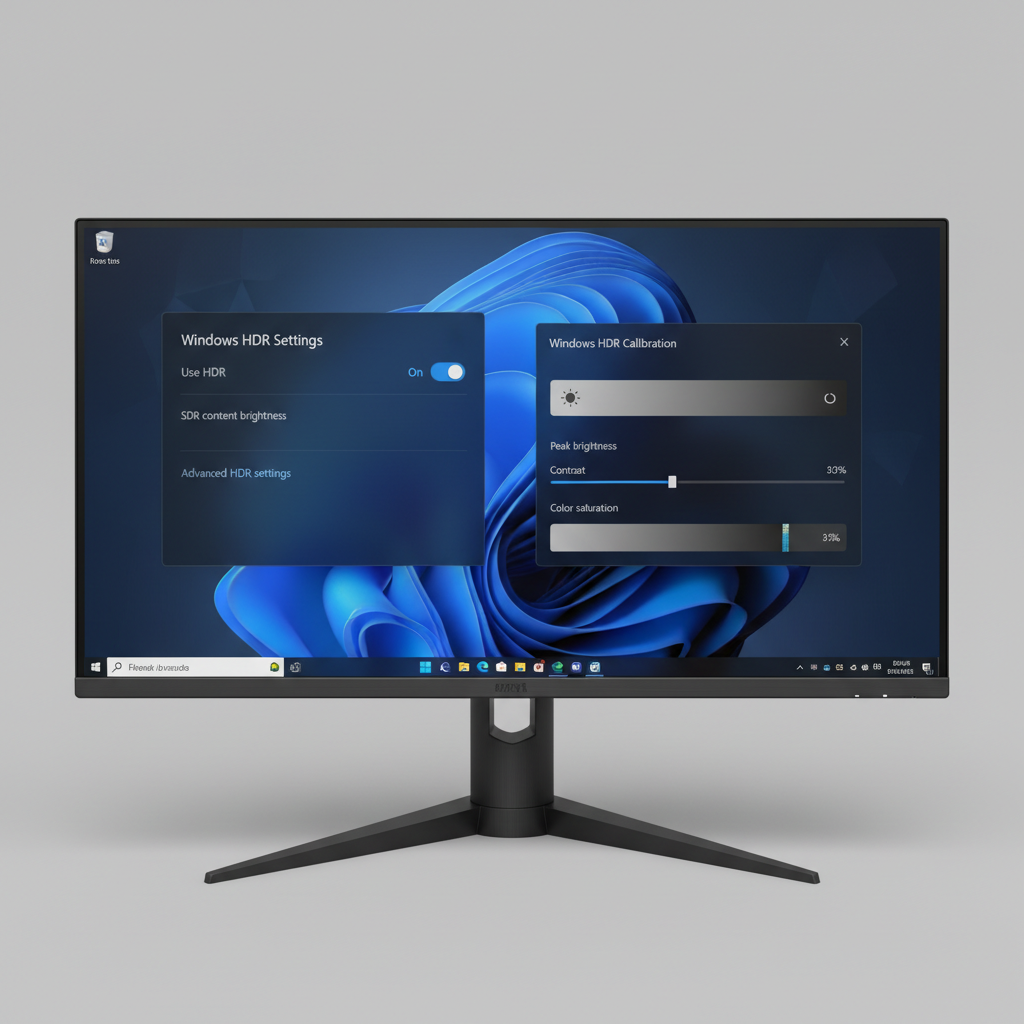
Baseline HDR settings that work for most people (monitor OSD first)
Start in the monitor’s on-screen display. This is where you control the panel behavior; software tweaks should come after.
Recommended starting points
- Picture mode: Use the monitor’s dedicated HDR mode, or a “Game HDR” mode if it exists. Avoid vivid/demo modes.
- Local dimming: Set to Medium/High if available. If it causes obvious blooming, drop one step rather than turning it off immediately.
- Color temperature: Aim for Warm/6500K. “Cool” often makes HDR look artificially blue.
- Gamma: Leave at default in HDR modes unless your monitor explicitly supports HDR gamma adjustments.
- Dynamic contrast / black equalizer: Usually off for HDR. These tools often crush shadow detail or lift blacks.
- Sharpness: Low or neutral. Extra sharpening can make bright edges look harsher in HDR.
- Peak brightness / HDR brightness: Set to the highest stable setting; if highlights clip hard, step down one notch.
One practical rule: in HDR, contrast should feel natural before it feels “bright.” If everything is bright, you are probably lifting the midtones and losing depth.
Windows 11/10 HDR settings (and when to use the HDR Calibration app)
On PC, Windows can be the biggest source of “washed out” complaints, especially when SDR content is shown while HDR is enabled.
What to set in Windows
- Use HDR: Turn on only when you plan to play HDR games, unless you like HDR on the desktop.
- SDR content brightness: Adjust until SDR apps look normal, not gray. Many setups land somewhere in the middle, but your room lighting matters.
- Auto HDR (Windows 11): Try it per game. Some titles look great, others look off; do not force it universally.
- Night light: Off for HDR gaming, it can skew color and perceived contrast.
Use Windows HDR Calibration when
- You see clipped whites (snow, clouds, UI elements losing detail)
- Dark scenes look foggy even with local dimming enabled
- Your monitor supports HDR well but games still feel “wrong”
According to Microsoft, the Windows HDR Calibration app helps set correct black level and peak brightness for your display. In plain English, it teaches Windows how bright your monitor can get so tone mapping behaves.
Console HDR settings (PS5 and Xbox) and what to prioritize
Console HDR setup is simpler, but the built-in calibration screens are easy to misunderstand. The goal is not “as bright as possible,” it is “bright without losing detail.”
PS5 HDR calibration (general approach)
- When the symbol is barely visible, stop there. If you push until it disappears completely, you often clip highlights in real games.
- Do this in the lighting you actually play in, a bright living room and a dark bedroom produce different results.
Xbox HDR calibration (general approach)
- Use the HDR Game Calibration tool and follow the patterns carefully, especially black level.
- If your monitor has local dimming, keep it on during calibration, otherwise you calibrate the “wrong” behavior.
For console players hunting the best hdr settings for gaming monitor, the biggest win is consistency: pick one HDR picture mode on the monitor, then calibrate the console once, and avoid stacking extra “dynamic” features.
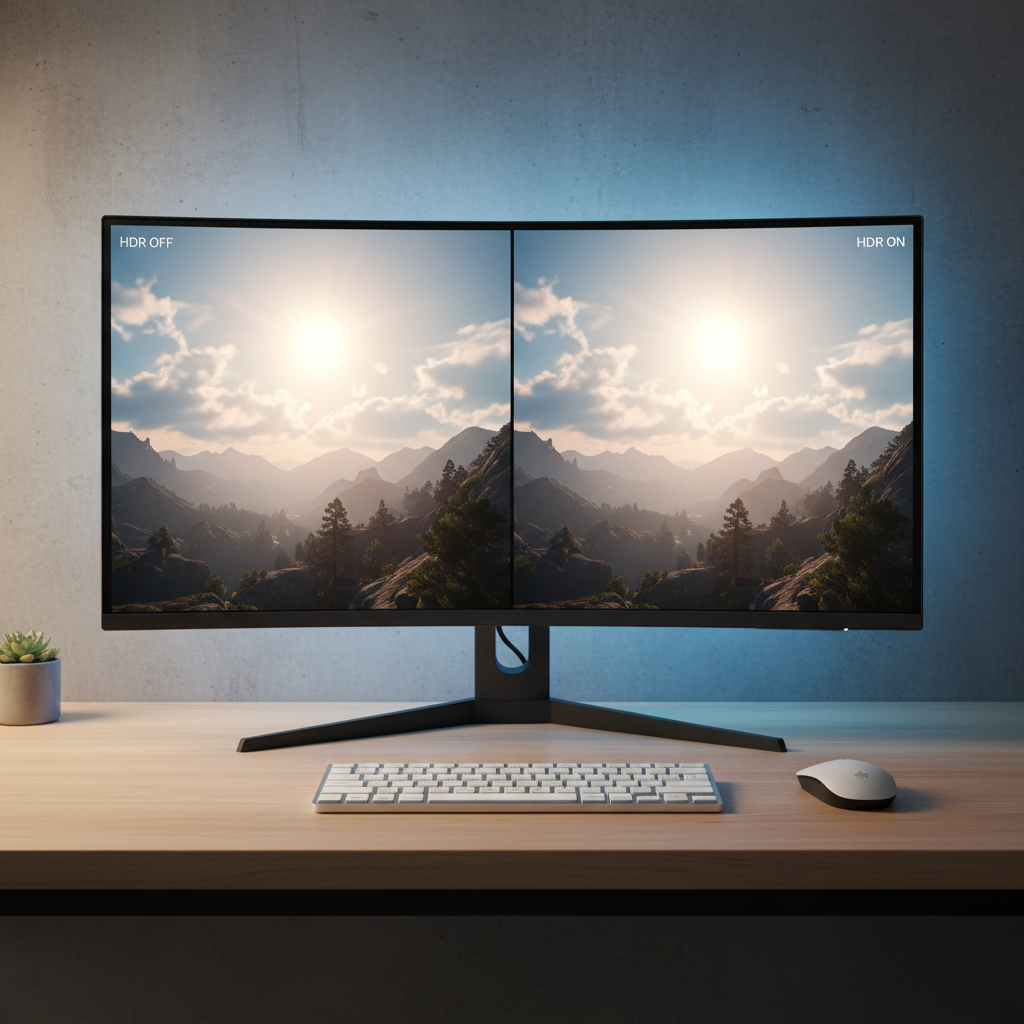
In-game HDR sliders: a practical method that avoids guesswork
Games label HDR sliders differently, but they usually map to the same controls. Here is a method that works across most titles.
Common HDR controls (translated)
- Peak brightness / Max luminance: How bright highlights can get before clipping.
- Paper white: How bright “normal white” UI and midtones look.
- HDR brightness: Often a mix of the two, and sometimes misleading.
A repeatable setup flow
- Set paper white first: Make UI and menus comfortable. If UI hurts your eyes, you will subconsciously hate HDR.
- Set peak brightness next: Use the game’s clipping pattern if provided, stop just before highlight detail disappears.
- Fix black level last: Raise only enough to see near-black detail, but keep blacks looking like blacks.
Many people invert this, they chase maximum brightness first, then wonder why dark scenes lose depth. Flip the order and it typically feels more controlled.
A quick settings table: start here, then fine-tune
These are safe starting points, not magic numbers. Monitor menus differ, and HDR quality varies a lot by model.
| Setting area | What to choose | Why it helps |
|---|---|---|
| Monitor HDR mode | HDR / Game HDR (not Vivid) | Reduces over-saturated tone mapping and blown highlights |
| Local dimming | Medium or High | Improves contrast and black depth in HDR scenes |
| Color temperature | Warm / 6500K | Keeps whites neutral, avoids blue-tinted “fake HDR” look |
| Windows SDR brightness | Adjust until SDR apps look normal | Prevents washed-out desktop while HDR is enabled |
| In-game paper white | Comfortable UI level | Controls midtones and UI glare, reduces eye fatigue risk |
| In-game peak brightness | Stop before clipping | Preserves highlight detail (clouds, reflections, snow) |
Common mistakes that sabotage HDR (even on good monitors)
These show up constantly in support threads, and they are often the real reason HDR looks “off.”
- Cranking contrast and brightness together: This can flatten the image, making everything look equally bright.
- Leaving “black equalizer” on: It can lift shadows and kill the depth HDR is supposed to add.
- Using SDR calibration patterns in HDR mode: HDR tone mapping changes the rules, so SDR test images can mislead.
- Forgetting per-input settings: Some monitors store different HDR settings for HDMI vs DisplayPort.
- Mixing GPU enhancements: Driver-level contrast/saturation tools can fight the monitor’s HDR processing.
Key takeaway: When HDR looks wrong, simplify the chain. Let the monitor handle panel behavior, let Windows/console calibrate once, then only adjust in-game sliders that clearly explain what they do.
When it’s time to stop tweaking and get help (or accept the limits)
Sometimes the answer is not another slider. If you see persistent flicker, signal dropouts, or HDR that never looks right across multiple games, it may be a cable/bandwidth issue, firmware quirk, or a limitation of the monitor’s HDR implementation.
- If HDR turns on but the screen randomly goes black, try a certified cable and lower refresh rate as a test.
- If local dimming causes distracting pumping, check for a firmware update from the monitor brand.
- If you are sensitive to bright UI, headaches, or eye strain, consider lowering paper white or playing in SDR and, if needed, consult a healthcare professional.
According to VESA, DisplayHDR tiers reflect different performance requirements. If your display sits at the entry tier, the best hdr settings for gaming monitor will improve balance, but it may not replicate the punch you see on higher-end HDR screens.
Conclusion: a simple plan that usually works
Good HDR in games is less about hunting a perfect number and more about building a clean, consistent pipeline. Get the monitor’s HDR mode and dimming right, calibrate Windows or your console once, then tune paper white and peak brightness per game.
If you want one action today, start by turning off extra “dynamic” features, run HDR calibration on your platform, and redo one game’s HDR sliders with paper white first. That single change often makes HDR feel intentional instead of chaotic.
FAQ
- Why does HDR look washed out on my gaming monitor?
It is often a mix of weak local dimming, low peak brightness, or SDR content being displayed while HDR is enabled. Try adjusting Windows “SDR content brightness” or disable HDR on the desktop and only enable it for games. - Should I leave HDR on all the time in Windows?
Many people do not, because SDR apps can look slightly gray depending on the monitor and Windows slider settings. If you spend lots of time in SDR (browsing, work), toggling HDR only for HDR games can be less annoying. - What are the best hdr settings for gaming monitor if it’s HDR400?
Aim for natural contrast, not maximum brightness: use a neutral HDR mode, keep local dimming on if available, and set in-game peak brightness to avoid clipping. The “wow” factor may be limited, but you can still get cleaner highlights than SDR in some titles. - Is 10-bit color required for HDR gaming?
HDR content is commonly mastered with higher bit depth, but real-world results depend on the full chain (game, GPU/console, monitor). If 10-bit forces you into unstable refresh rates, prioritizing stability can be the better call. - What should I set “paper white” to in HDR games?
Set it to a level where UI looks comfortably white without glare. If the HUD feels like a flashlight, drop paper white before lowering peak brightness. - Why do some games have great HDR and others look odd?
HDR implementation varies by engine and tuning. Some games expose meaningful controls, others apply aggressive tone mapping. Treat HDR as per-game calibration, not a one-time universal setup. - Will local dimming always improve HDR?
Often yes, but not always. Some monitors show blooming or brightness pumping that can distract in dark games. Medium dimming can be a better compromise than max.
If you are testing multiple monitors or want a more hands-off way to land on consistent results, it can help to share your exact model, platform (PC/PS5/Xbox), and a couple screenshots of your current HDR menus with a calibrator or a knowledgeable display community, you will usually get faster, more specific guidance than generic presets.