
how to enable spatial audio for gaming is mostly a settings problem, not a “buy a new headset” problem, and once it’s configured correctly you usually notice clearer direction cues, like footsteps or reloads, without cranking volume.
A lot of players turn on “3D audio,” hear weird echo or thin voices, then assume spatial audio is a gimmick. In reality, the usual culprit is a mismatch: the wrong output mode, double-processing (game + console + headset app all doing virtual surround), or a headset profile that doesn’t fit your ears.
This guide walks through what spatial audio actually changes, how to enable it on Windows, Xbox, and PS5, plus quick checks to confirm it’s working. You’ll also see when to avoid it, because yes, some games and setups sound better in plain stereo.
What “spatial audio” means in games (and what it doesn’t)
Spatial audio is a way to make sound feel like it comes from specific points around you, including above and behind. In practical terms, it’s about positioning, not just “more bass” or “bigger sound.”
Two common approaches show up in gaming:
- Headphone spatial (virtual surround via software): Windows Sonic, Dolby Atmos for Headphones, DTS Headphone:X, console 3D audio, or a headset app doing HRTF-style processing.
- Home theater spatial (real speakers): Dolby Atmos/DTS:X through an AVR or soundbar, where physical speakers (or upfiring drivers) carry the positioning.
What it doesn’t do: it won’t fix a bad mix, and it won’t magically reveal enemy locations if your game audio is noisy, compressed by streaming/voice chat, or masked by explosions.
According to Dolby Laboratories, Atmos enables object-based audio where sounds can be placed and moved in 3D space, which is why supported games can feel more precise when your output chain is set correctly.
Before you toggle anything: a fast setup checklist
Before changing settings, get the basics clean. Most “spatial sounds bad” reports come from one of these.
- Confirm your output type: are you using headphones via controller, USB, DAC, or TV? The path changes available options.
- Turn off double surround: if your headset has its own 7.1 button/app, don’t stack it with Windows/console spatial at the same time.
- Pick the game’s correct audio mode: many titles offer “Headphones,” “Home Theater,” “3D Headphones,” or “Atmos.” Choose the one matching your output.
- Reset EQ to neutral: heavy bass boosts can blur front/back cues.
- Update firmware/drivers: especially for wireless dongles and USB headsets.
If you want a quick “is it even working” test, play a known positional audio clip or a game tutorial scene, then rotate your character slowly. You should hear sounds shift smoothly around you, not jump or smear.
How to enable spatial audio on Windows 11/10 (the settings that matter)
Windows can apply spatial processing at the system level, which is handy, but it also makes it easier to accidentally layer effects. Here’s the clean way.
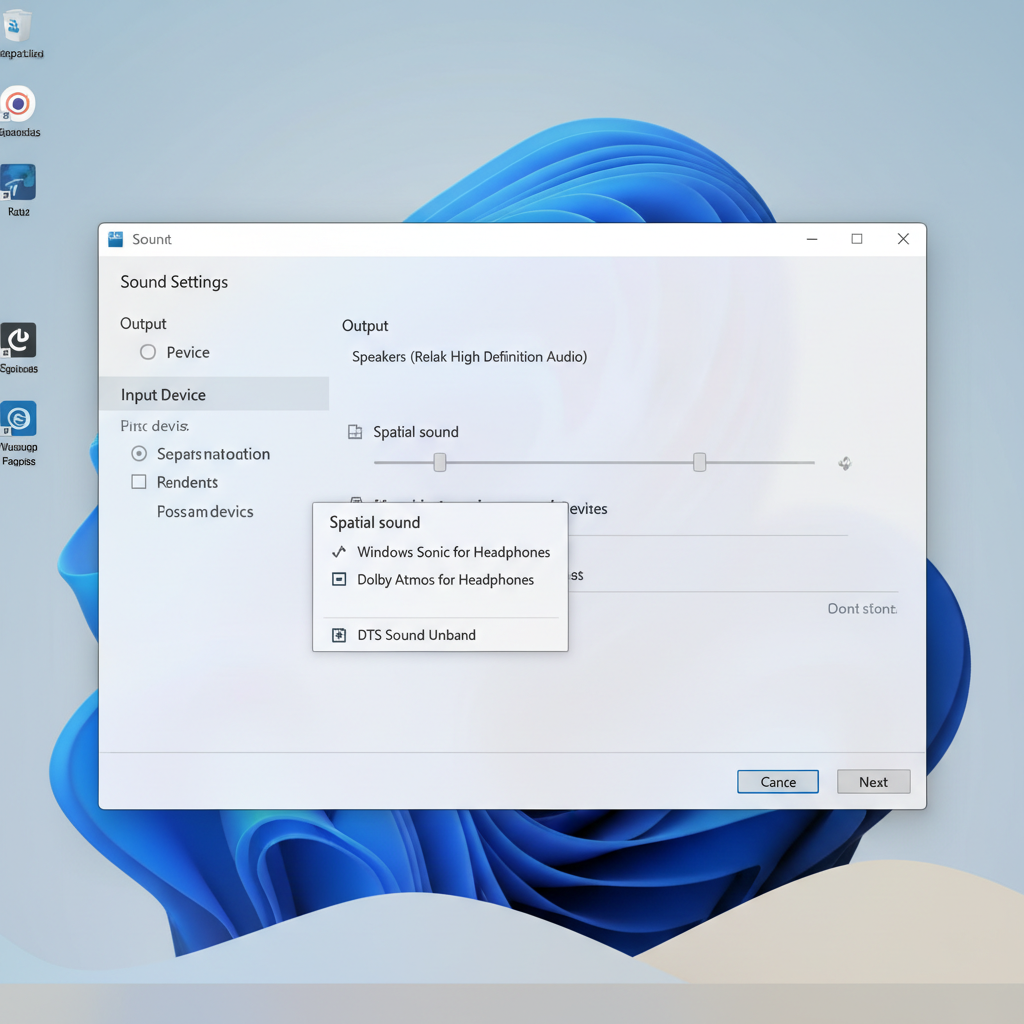
Enable Windows Sonic (free) or switch to Atmos/DTS
- Right-click the speaker icon in the taskbar.
- Select Sound settings (Windows 11) or Open Sound settings (Windows 10).
- Choose your headset/output device, then open Spatial sound.
- Select one:
- Windows Sonic for Headphones (built-in)
- Dolby Atmos for Headphones (requires Dolby Access app/license in many cases)
- DTS Headphone:X (requires DTS Sound Unbound app/license in many cases)
Now the “don’t sabotage yourself” part: if your headset software offers virtual surround, turn it off and leave only one spatial layer active.
In-game settings that often need to match
After system spatial is on, open the game audio menu and look for:
- Output device: set to your headset, not a monitor/TV.
- Dynamic range: “Night” can crush cues; “Wide” can be clearer if your environment is quiet.
- Headphones / 3D headphones: use this when you’re on headphones, even if Windows handles spatial.
- Disable “surround virtualization” if the game already outputs Atmos objects and your system also virtualizes.
In competitive shooters, also check whether the game has a “boost high” or “footsteps” preset. It can help, but too much boosts hiss and makes distance judgment worse.
How to enable spatial audio on Xbox Series X|S and Xbox One
Xbox does a decent job making this straightforward, as long as your headset connection supports it.
- Open Settings → General → Volume & audio output.
- Under Headset audio, set Headset format to:
- Windows Sonic for Headphones (usually free)
- Dolby Atmos for Headphones (may require Dolby Access setup)
- DTS Headphone:X (may require DTS Sound Unbound setup)
- If you see an option like Using HDMI audio headset vs controller headset, confirm it matches your actual connection.
According to Microsoft Support, spatial sound formats on Xbox are configured through the headset format setting, and specific formats can require their companion apps for activation and configuration.
If your headset has its own surround toggle, pick one approach. Many people get the best results by letting Xbox handle spatial and leaving headset “7.1” off, but some headset tunings sound cleaner the other way around.
How to enable 3D audio on PS5 (and why the calibration step matters)
PS5’s Tempest 3D AudioTech can sound great, but it’s more sensitive to profile choice than people expect.
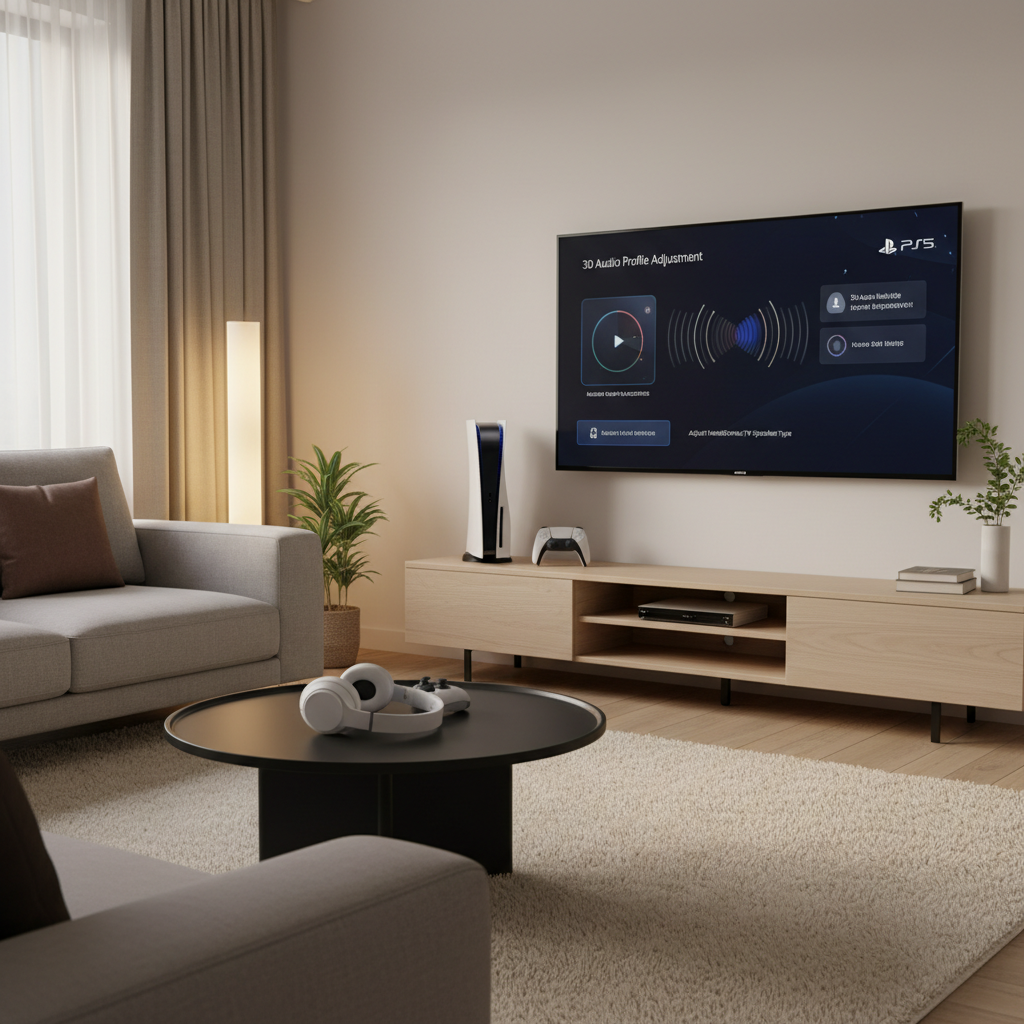
- Go to Settings → Sound → Audio Output.
- Enable 3D Audio for Headphones.
- Select Adjust 3D Audio Profile, then pick the height/profile that feels most “centered.”
This profile step looks minor, but if you choose poorly you can get that “hollow hallway” effect or confusing elevation cues. Spend two minutes here and it often saves hours of tweaking later.
Also watch the output device: if you route audio through a TV, then plug headphones into the TV, PS5 3D audio behavior can vary by TV model and connection method. In those cases, testing direct controller audio vs TV output can quickly show what’s being processed where.
Which spatial mode should you choose? (Quick comparison table)
If you’re stuck deciding, this table helps you pick based on what you’re optimizing for.
| Option | Best for | Trade-offs | Where you’ll see it |
|---|---|---|---|
| Windows Sonic | Simple, no-cost spatial on PC/Xbox | Can sound less “wide” than paid options in some games | Windows, Xbox |
| Dolby Atmos for Headphones | Games with Atmos support, balanced surround cues | May require app/license, setup adds complexity | Windows, Xbox |
| DTS Headphone:X | Strong directional imaging for some players | Can emphasize treble, may feel sharp on bright headsets | Windows, Xbox |
| PS5 3D Audio | PS5 headphone gaming, profile-based tuning | Profile mismatch can create echo or odd elevation | PlayStation 5 |
| Headset “7.1” app mode | All-in-one tuning with mic controls and EQ | Easy to double-process if OS/console spatial also on | Many USB/wireless headsets |
Practical tuning: make footsteps clearer without wrecking the mix
Once you’ve turned spatial on, the next 10% is tuning. This is where people either get a clean advantage or end up with harsh, tiring sound.
Start with these “safe” adjustments
- Lower bass a touch (if your headset is bass-heavy): too much low end masks movement cues.
- Don’t overboost treble: it can make footsteps pop, but it also makes gunfire fatiguing.
- Set voice chat separation: if your platform offers a game/chat mix, keep game audio dominant for competitive play.
- Match sample rate defaults: on Windows, extreme formats can introduce odd resampling artifacts in some setups.
A quick “is this good?” test loop
- Load a repeatable scene (training range, same map corner, or a replay).
- Stand still, rotate slowly, listen for smooth panning.
- Walk near a wall, listen for whether reverb feels natural or exaggerated.
- If everything sounds bigger but less precise, back off processing (often disabling one spatial layer fixes it).
Key point: the clearest competitive sound is usually the one with the fewest audio “enhancements” turned on at once.
Common mistakes (the ones that waste the most time)
- Using “Home Theater” in-game on headphones: it can push wide dynamic range and reverb meant for speakers, making cues vague.
- Stacking spatial effects: Windows Sonic + headset 7.1 + in-game surround often creates phasey, echo-like audio.
- Assuming every game supports it equally: some titles have excellent HRTF mixing, others barely change.
- Chasing max loudness: louder can feel “more detailed,” but it also increases listening fatigue. If you feel discomfort, reduce volume and consider talking to a hearing professional.
- Ignoring mic sidetone settings: excessive sidetone can distract you and mask quiet cues.
According to CDC guidance on hearing health, prolonged exposure to loud sounds can increase risk of hearing damage, so keeping gaming volume at a comfortable level is a practical safety habit.
When it’s worth getting extra help (or upgrading)
If you’ve followed the steps and spatial still sounds off, the issue is often hardware compatibility or a software conflict.
- Persistent crackling/dropouts on wireless: check firmware, USB port, interference, then consider manufacturer support.
- Severe echo/“underwater” tone even with one spatial layer: a driver enhancement or third-party audio app might be overriding settings.
- Single-ear imbalance or dizziness: stop using that profile and reduce volume; if it continues, a clinician can help assess hearing or sensitivity issues.
If you do consider an upgrade, prioritize comfort, stable drivers, and a mic that doesn’t force aggressive noise suppression. Pure “surround marketing” matters less than a clean, consistent signal.
Conclusion: the simplest path to better 3D cues
If you only take two actions, do these: enable one spatial system (Windows/Xbox/PS5 or headset app, not multiple) and match the game’s audio output mode to your device. That combination solves most “spatial audio sounds weird” complaints without extra spending.
After that, give yourself one short tuning session, then stop tweaking. Good spatial audio feels a bit boring in menus, then suddenly becomes obvious when you track a moving enemy by sound.
FAQ
How do I know spatial audio is actually working in my game?
Use a repeatable scene and rotate your character slowly. If positioning shifts smoothly and front/back cues feel stable, it’s working. If sound turns roomy or phasey, you likely have double-processing.
Is Dolby Atmos better than Windows Sonic for competitive shooters?
It depends on the game mix and your headset tuning. Atmos can feel more natural in some titles, but Windows Sonic can be clearer and “cleaner” for others. The best pick is the one that keeps direction cues precise without adding echo.
Should I turn on my headset’s 7.1 button if I use PS5 3D Audio?
In many cases, no. Let PS5 handle headphone spatial and keep headset virtual surround off, otherwise you may blur cues. If your headset forces processing, try disabling PS5 3D audio and compare.
Why do voices sound far away after enabling spatial audio?
This often happens when the game is set to “Home Theater” or when two surround processors stack. Switch the game to “Headphones” mode and keep only one spatial feature enabled system-wide.
Can spatial audio increase input lag?
Usually the added processing is tiny, but certain USB DSP modes or third-party audio suites can add delay. If gunshots feel disconnected, try a simpler chain: direct stereo or a single OS-level spatial option.
Does spatial audio work with any headset?
Most wired and wireless headsets work, but quality varies. A headset with uneven drivers or heavy “V-shaped” tuning can make spatial cues harder to interpret, even if the feature is enabled correctly.
What’s the best in-game audio setting when using spatial sound on PC?
Commonly “Headphones” or “3D Headphones” is the right starting point. If the game has a specific Atmos setting and you’re using Atmos for Headphones, that can be worth testing, but trust your ears over labels.
If you’re trying to enable spatial audio for gaming across multiple devices and it keeps sounding inconsistent, it may be easier to standardize your setup: pick one spatial platform per device, keep EQ modest, and document the exact settings that feel right so you can restore them after updates.